

Filter Form
Introduction
The filter form allows users to filter data by filling in form fields. It can be used to filter table blocks, chart blocks, list blocks, etc.
How to Use
Let's first quickly understand how to use the filter form through a simple example. Suppose we have a table block containing user information, and we want to filter the data using a filter form. Like this:
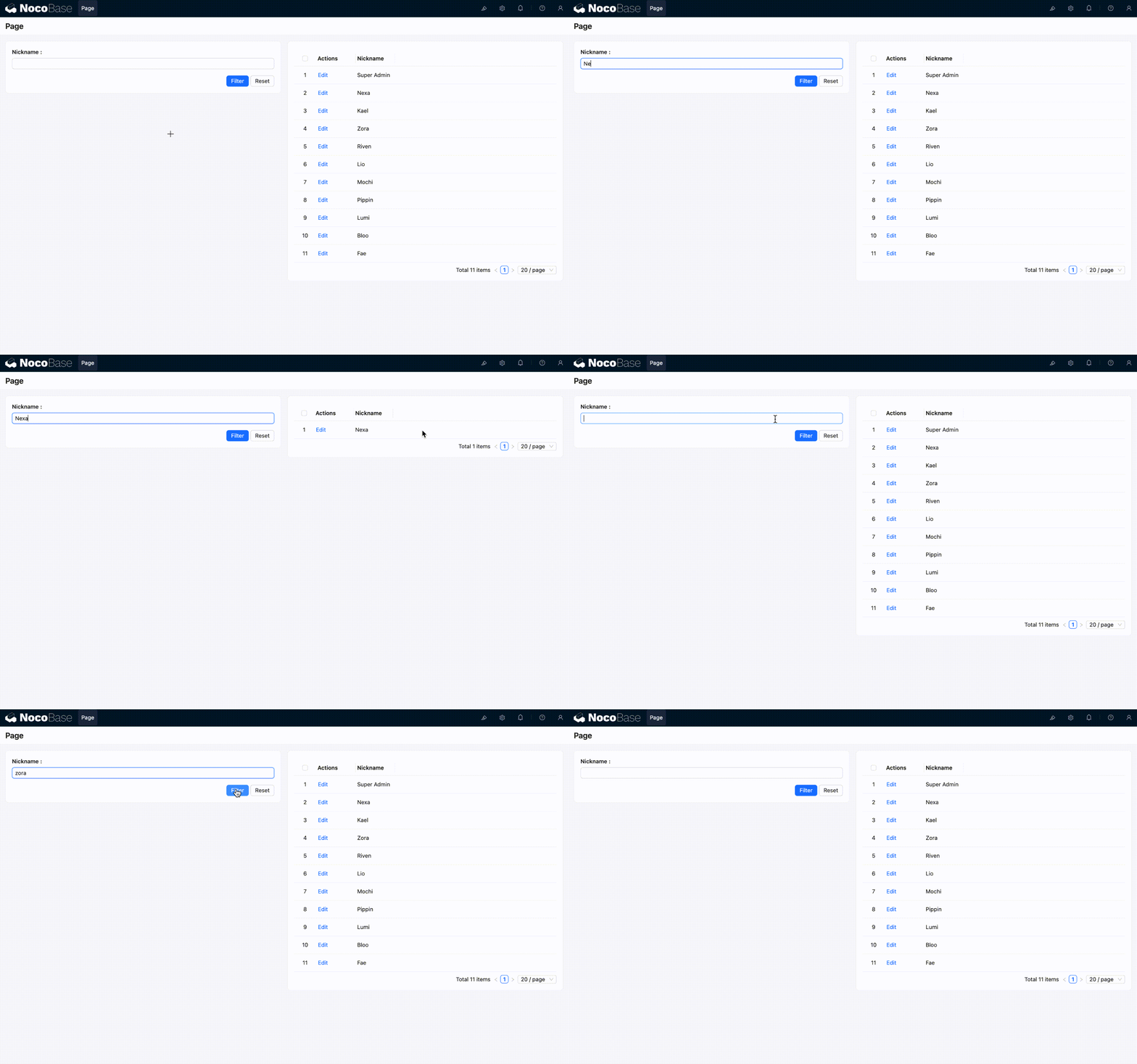
The configuration steps are as follows:
- Enable Edit Mode, and add a "Filter form" block and a "Table" block to the page.
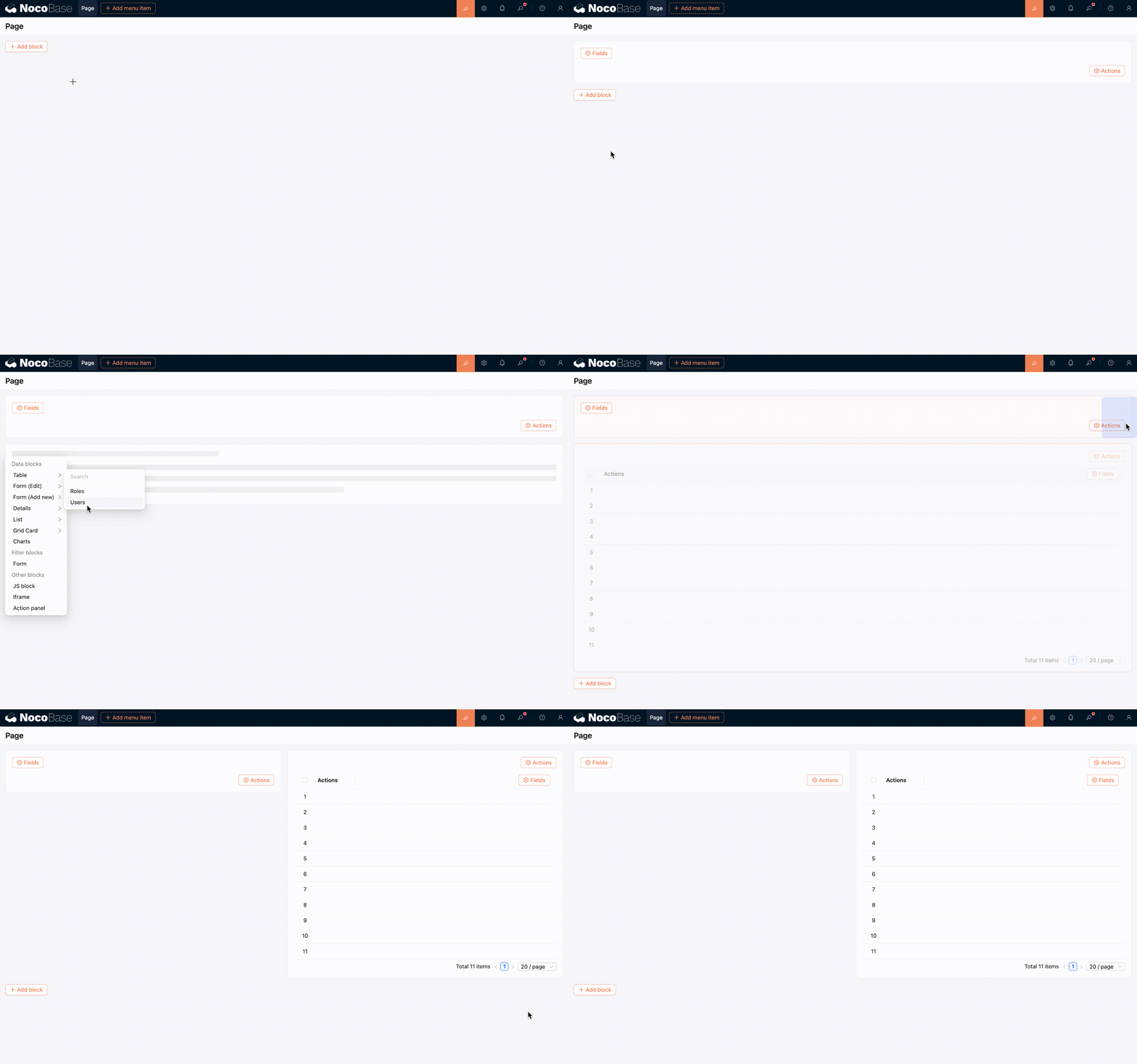
- Add the "Nickname" field to both the table block and the filter form block.
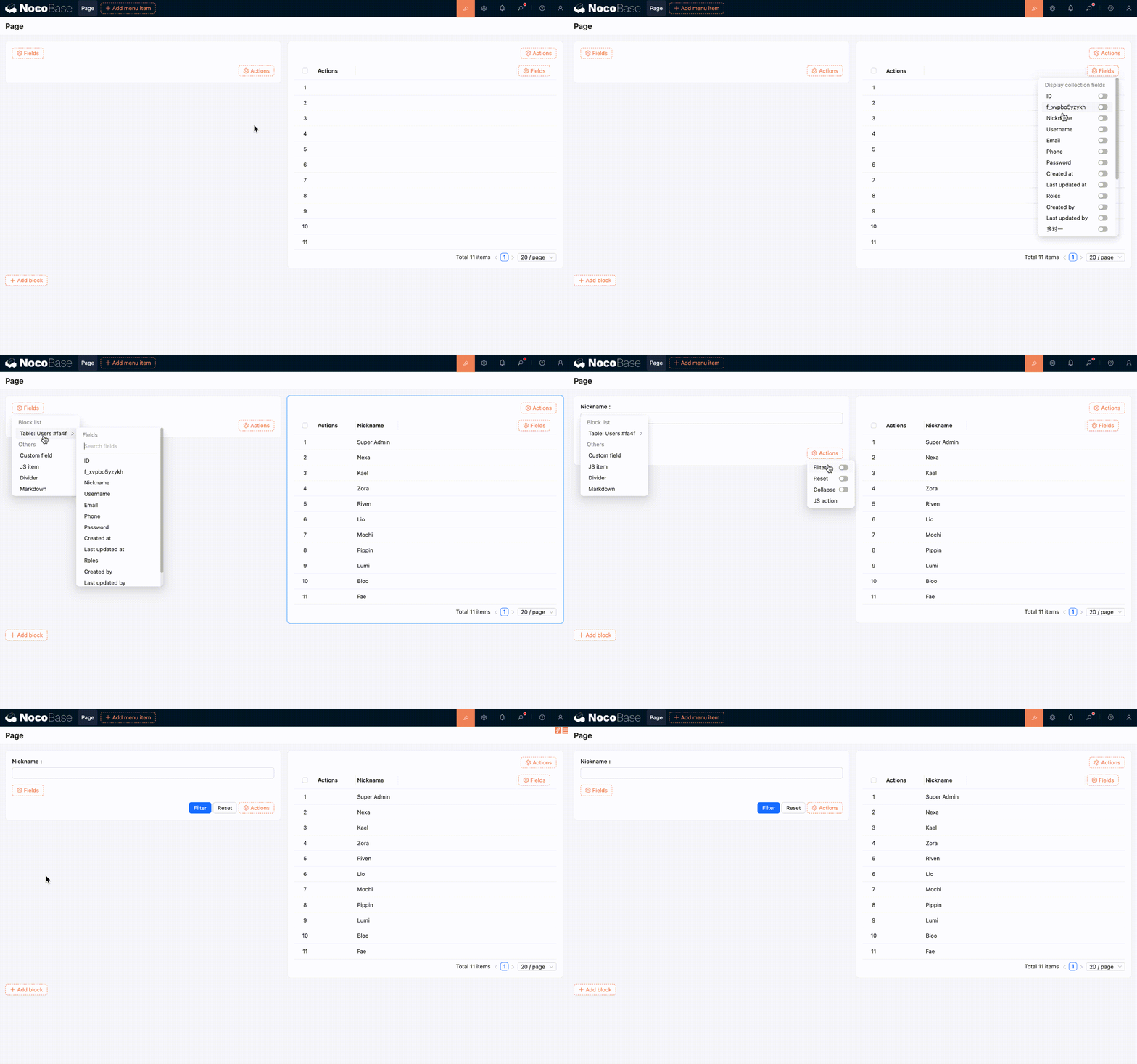
- Now it is ready to use.
Advanced Usage
The filter form block supports more advanced configurations. Here are some common use cases.
Connecting Multiple Blocks
A single form field can filter data across multiple blocks simultaneously. The steps are as follows:
- Click the "Connect fields" configuration option for the field.
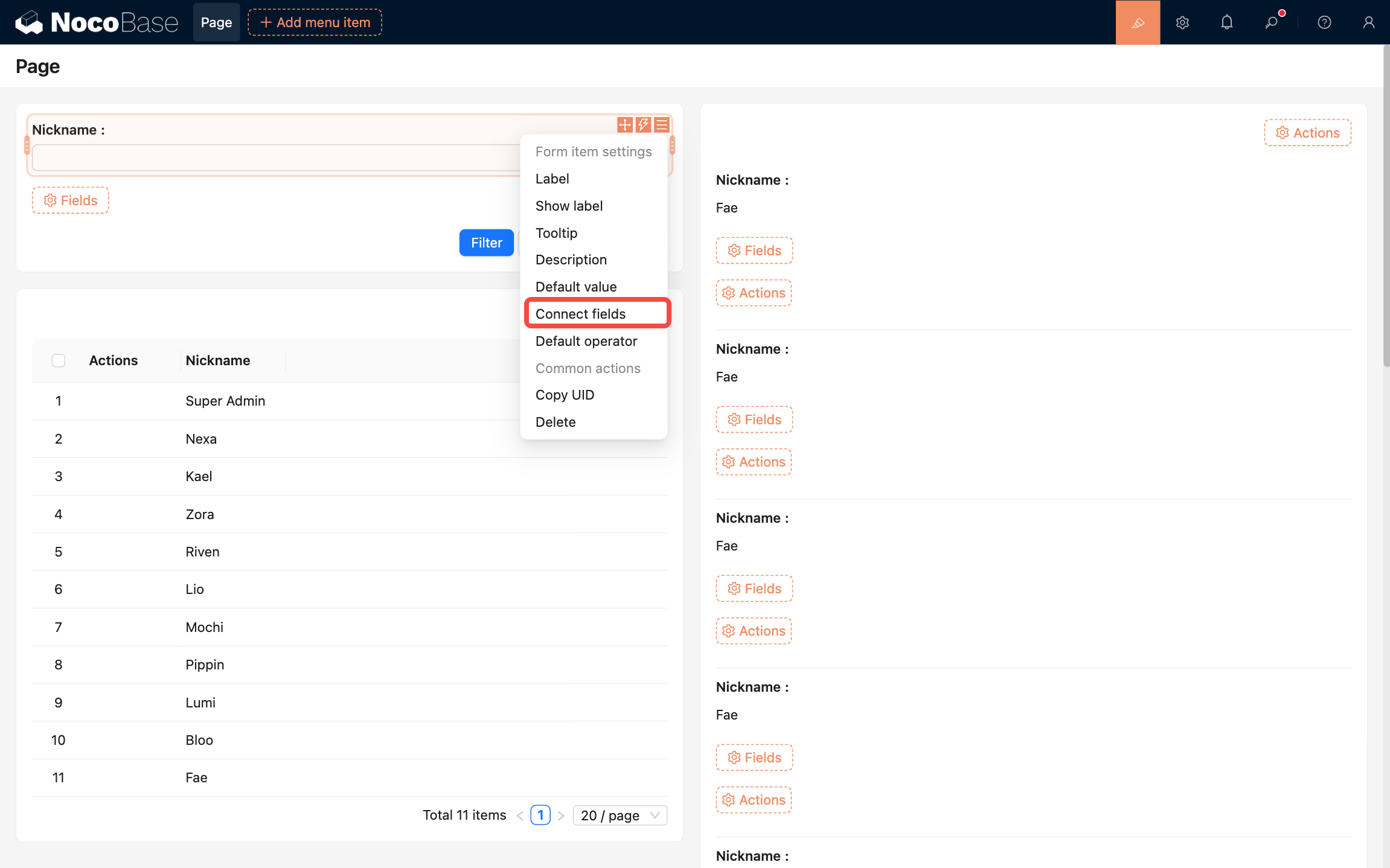
- Add the target blocks to be associated; here we select the list block on the page.
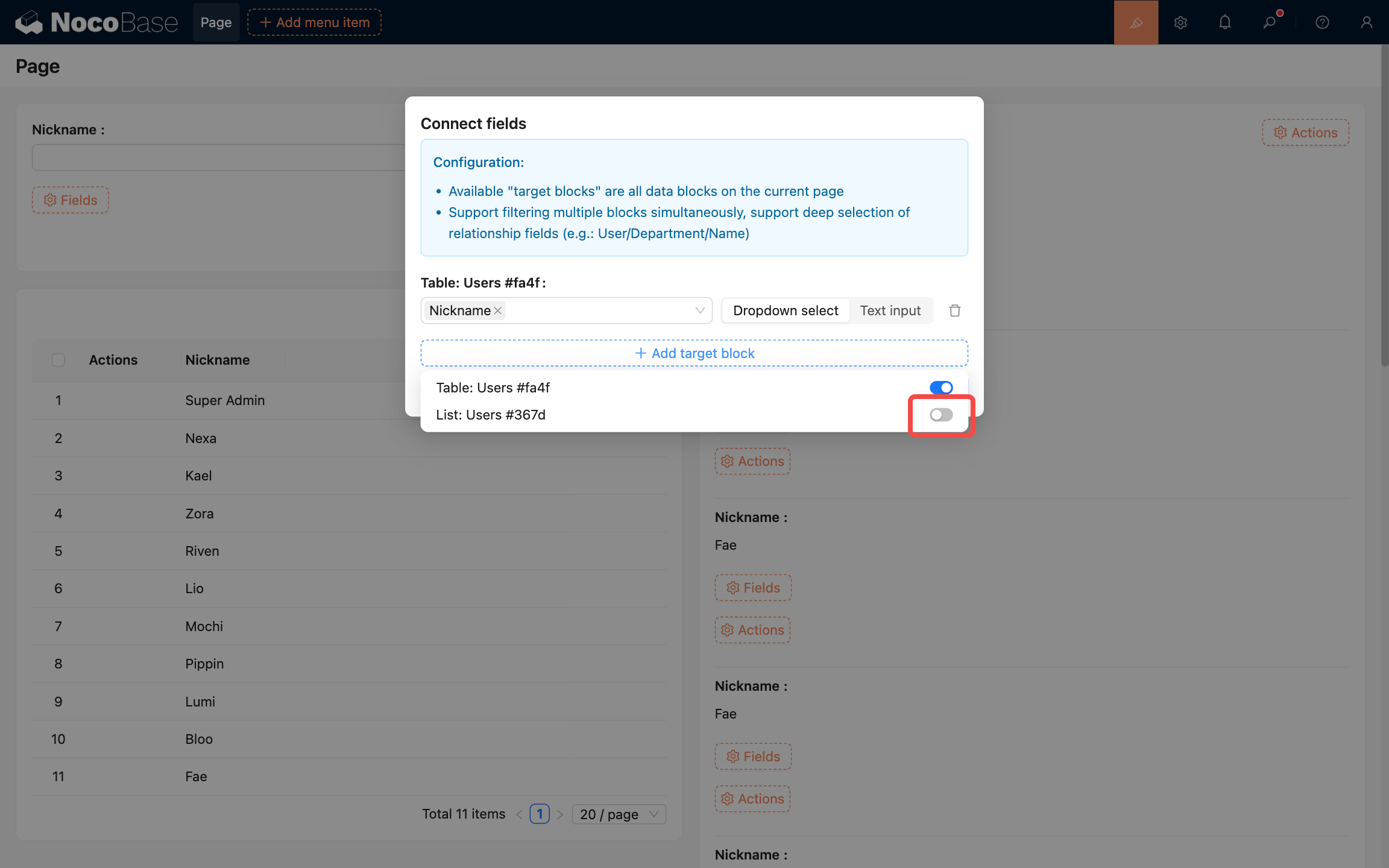
- Select one or more fields in the list block to associate. Here we select the "Nickname" field.
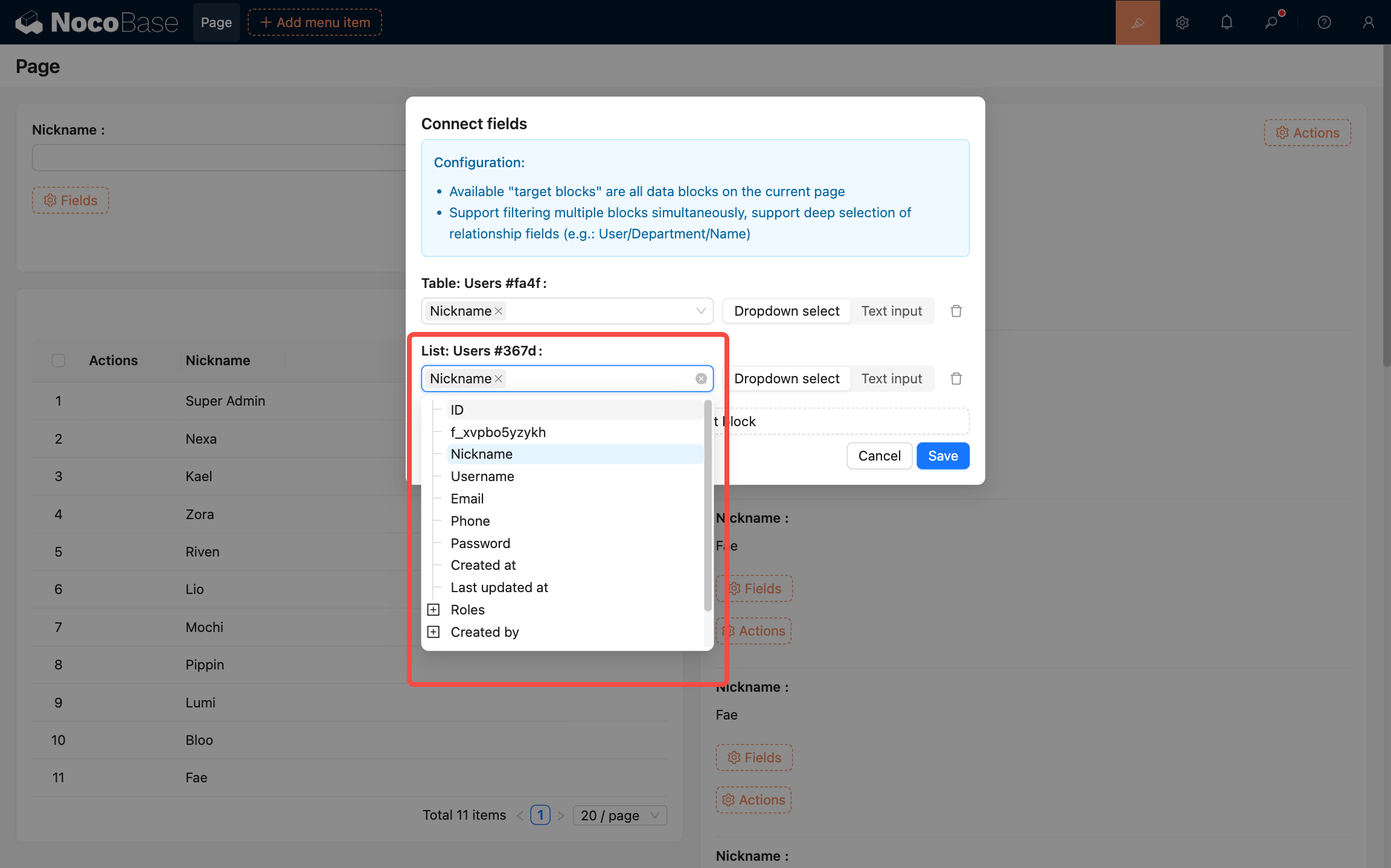
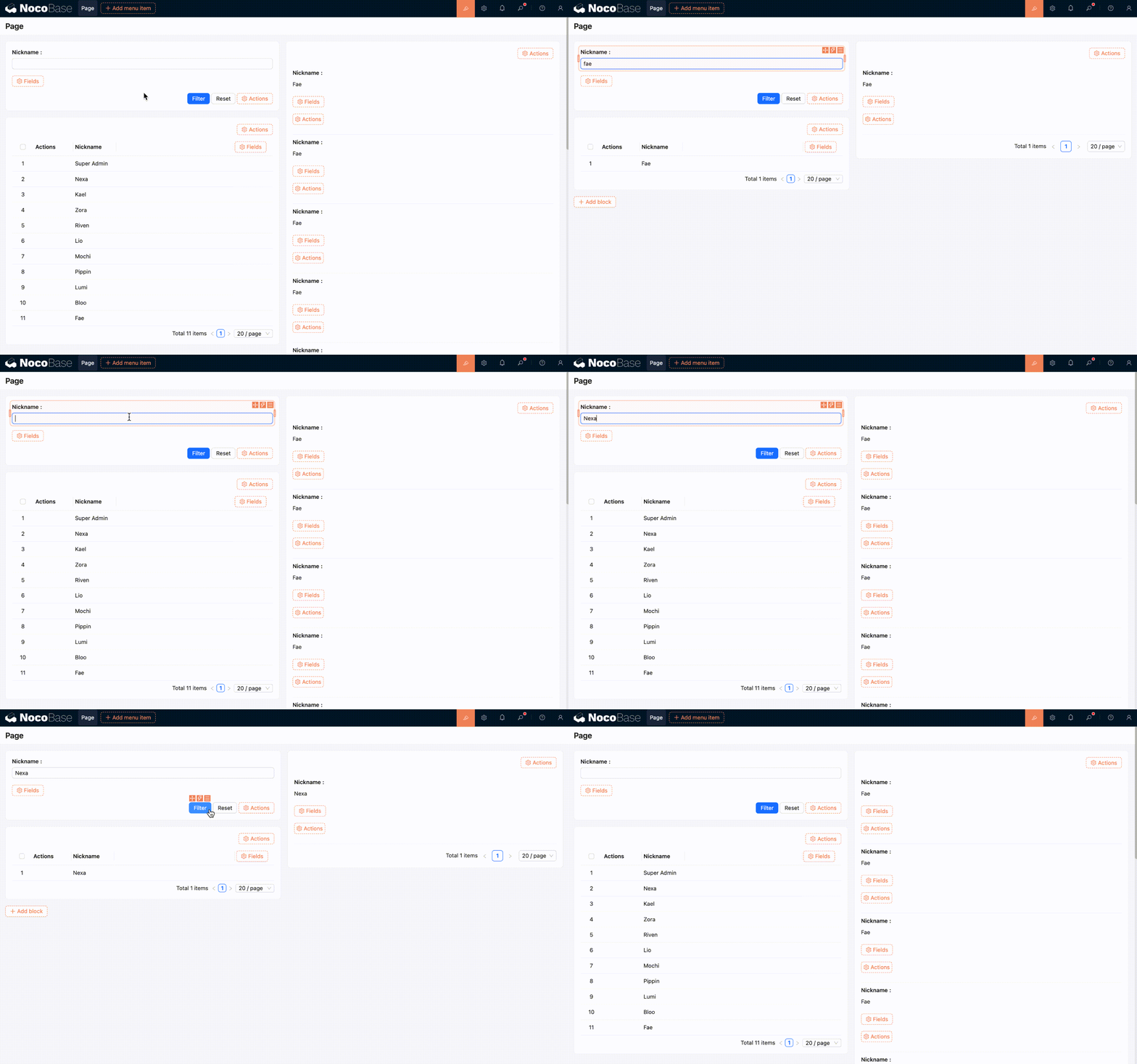
- Click the save button to complete the configuration. The effect is as follows:
Connecting Chart Blocks
Reference: Page Filters and Linkage
Custom Fields
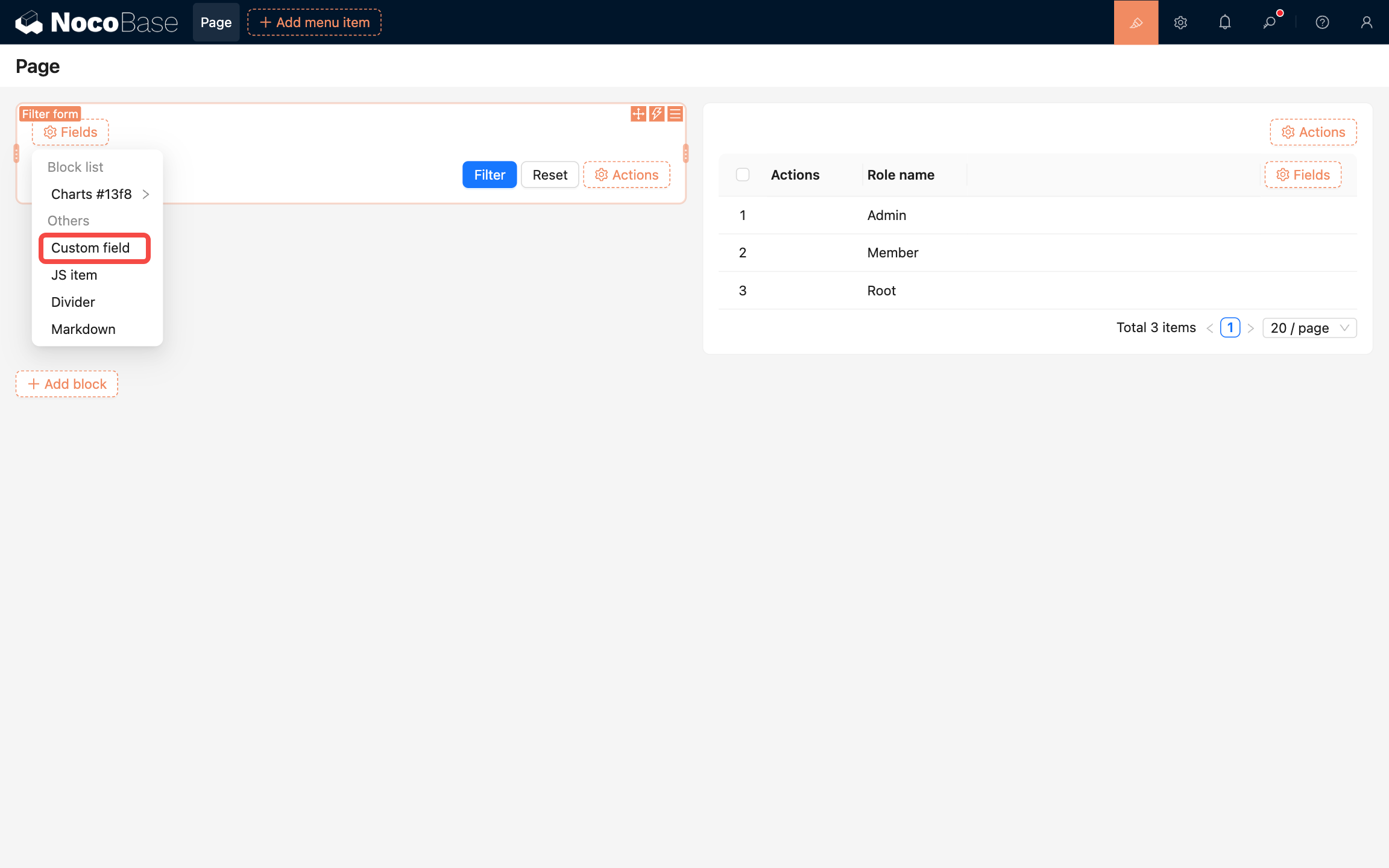
In addition to selecting fields from the collection, you can also create form fields through "Custom fields". For example, you can create a single select field and customize the options. The steps are as follows:
- Click the "Custom fields" option to open the configuration interface.
- Fill in the field title, select "Single select" in "Field type", and configure the options.
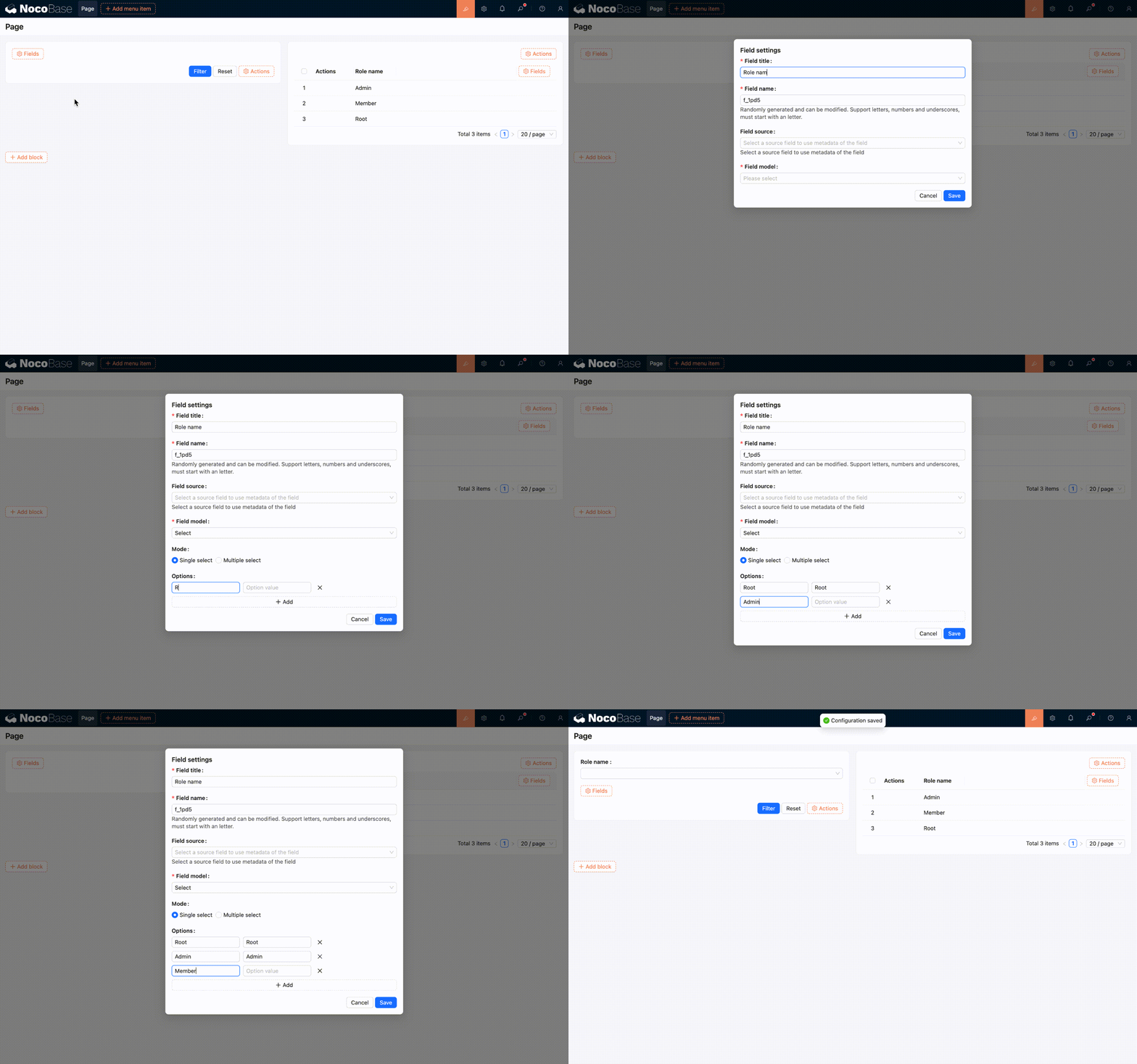
- Newly added custom fields need to be manually associated with fields in the target blocks:
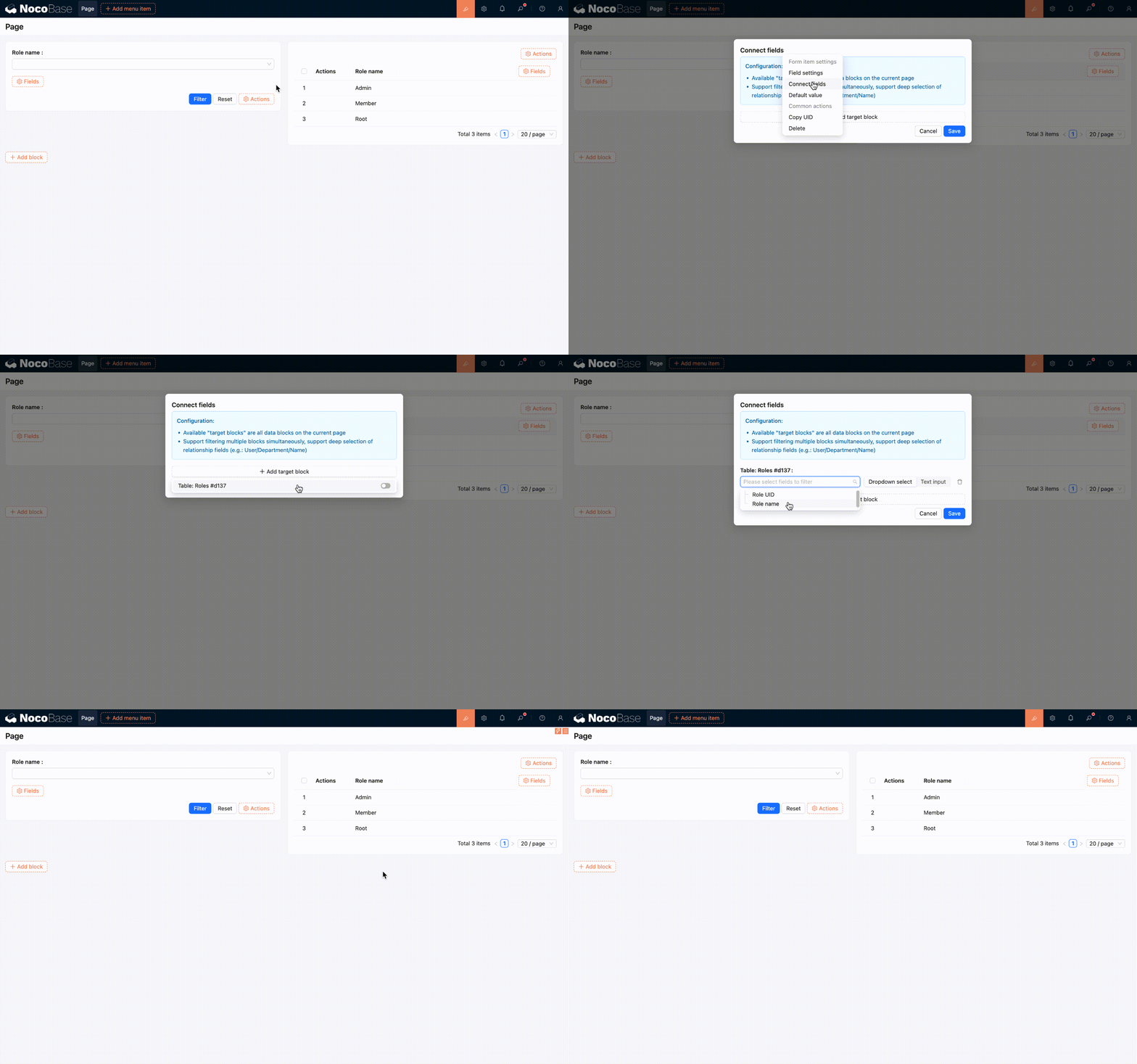
- Configuration complete, the effect is as follows:
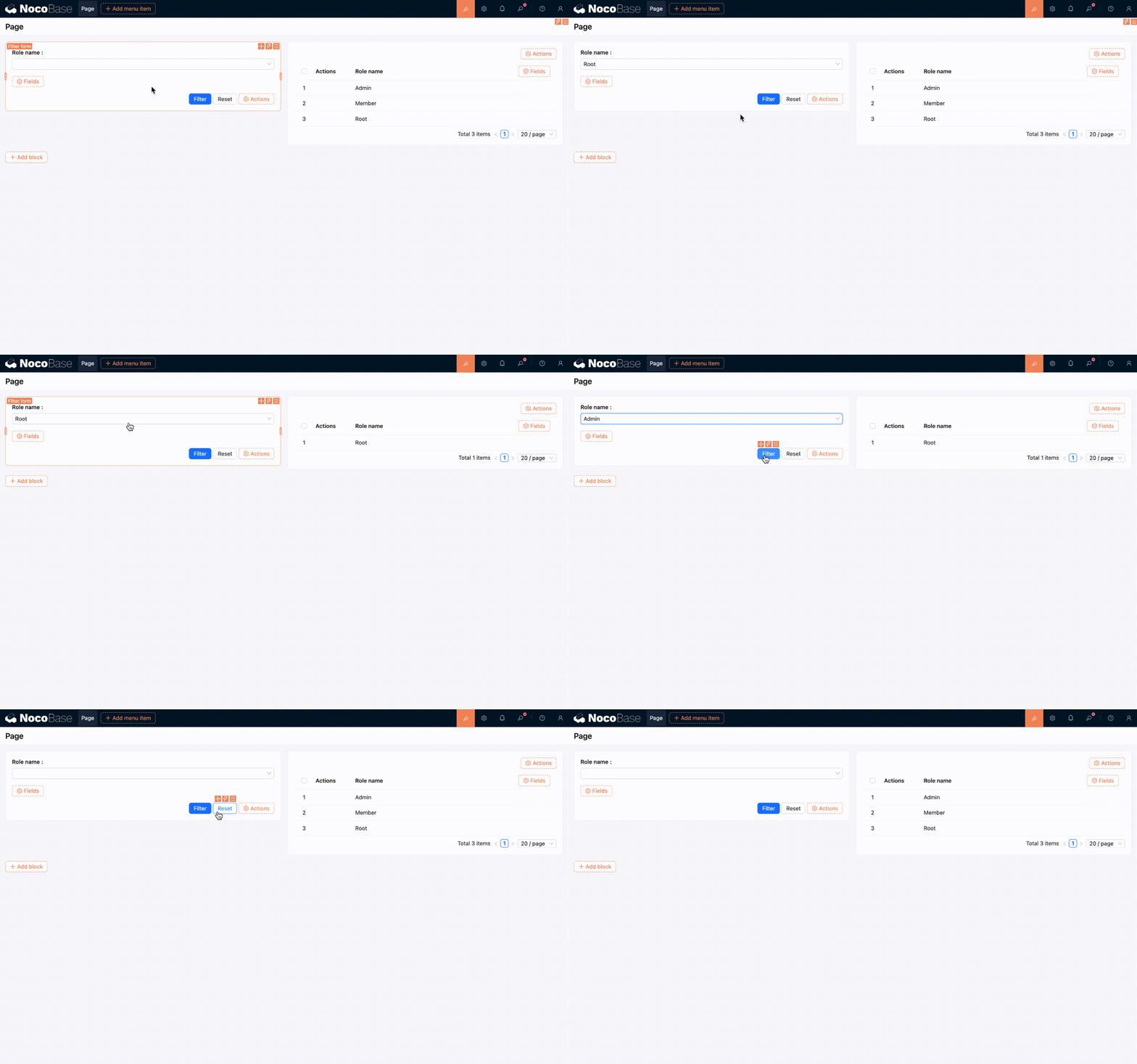
Currently supported field types include:
- Single Line Text
- Number
- Date
- Single select
- Radio Group
- Checkbox group
- Association
Association (Custom Relationship Field)
"Association" is suitable for scenarios such as "filtering by associated records". For example, filtering orders by "Customer" in an order list, or filtering tasks by "Assignee" in a task list.
Configuration options:
- Target Collection: Specifies which collection to load selectable records from.
- Title Field: Used as display text in the dropdown options and selected tags (such as name or title).
- Value Field: Used as the actual submitted filter value, usually a primary key field (such as
id). - Allow Multiple: When enabled, multiple records can be selected at once.
- Operator: Defines how filter conditions are matched (see "Operator" below).
Recommended configuration:
- Choose a highly readable field for Title Field (e.g., "Name") to avoid affecting usability with raw IDs.
- Prioritize the primary key field for Value Field to ensure stable and unique filtering.
- Usually disable Allow Multiple for single-select scenarios, and enable it with an appropriate Operator for multi-select scenarios.
Operator
Operator is used to define the matching relationship between the "filter form field value" and the "target block field value".
Collapse
Add a collapse button to fold and expand the filter form content, saving page space.
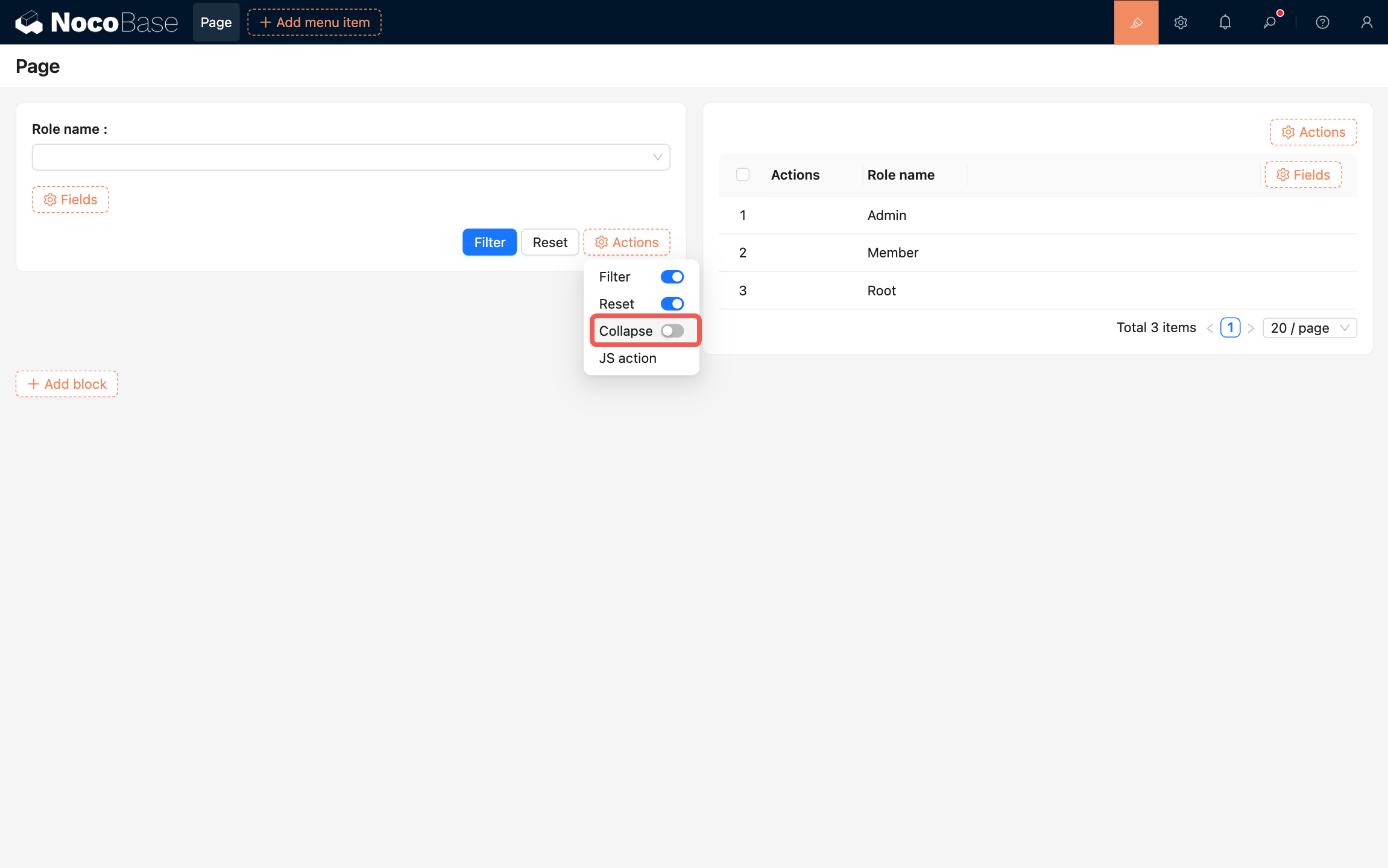
Supported configurations:
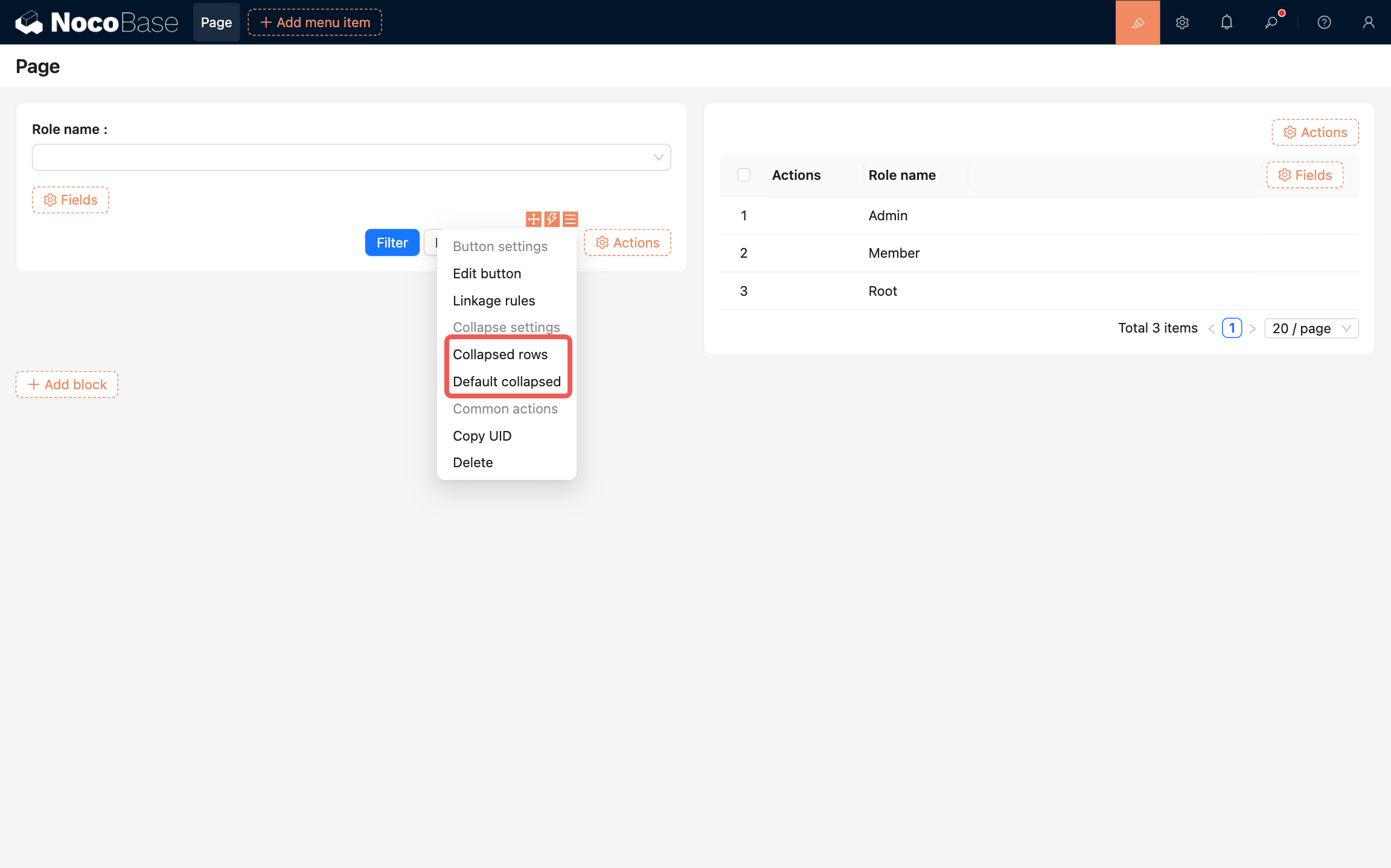
- Rows to show when collapsed: Sets the number of form field rows displayed in the collapsed state.
- Default collapsed: When enabled, the filter form is displayed in the collapsed state by default.