

Calendar block
CalendarCommunity Edition+Introduction
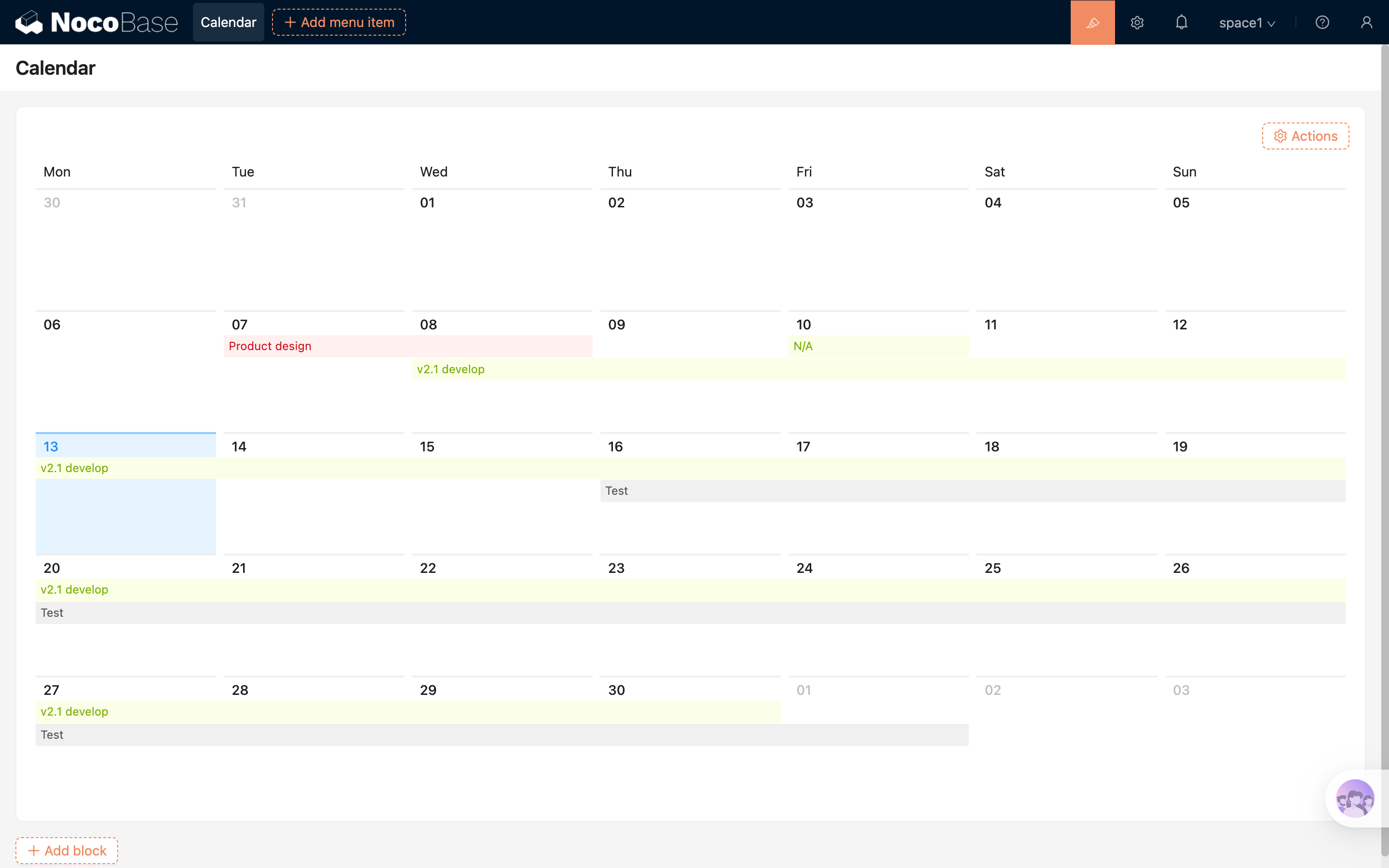
The Calendar block provides an intuitive calendar view to display events and date-related data. It is suitable for typical scenarios such as meeting scheduling and activity planning.
Installation
This block is a built-in plugin and does not require additional installation.
Add block
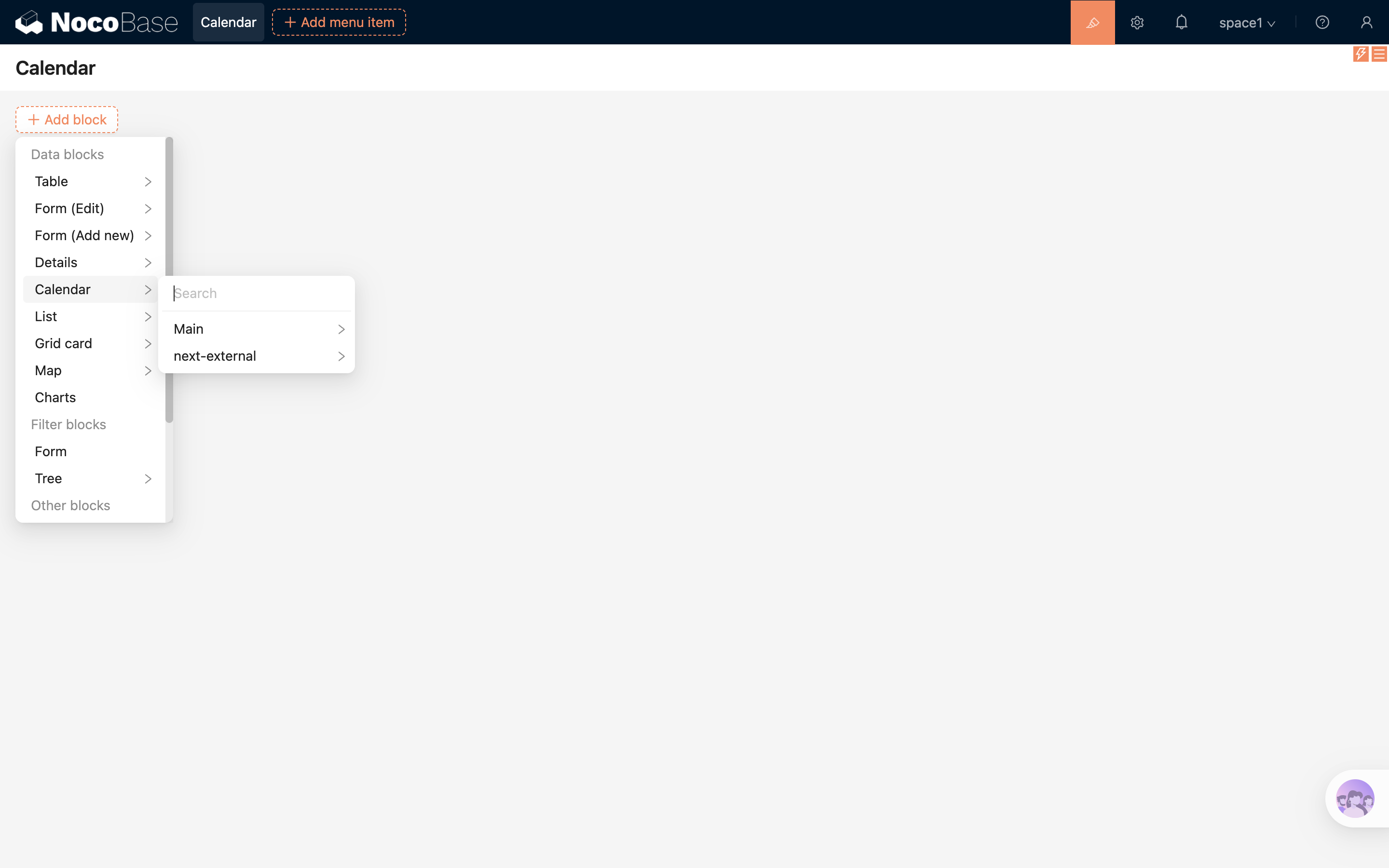
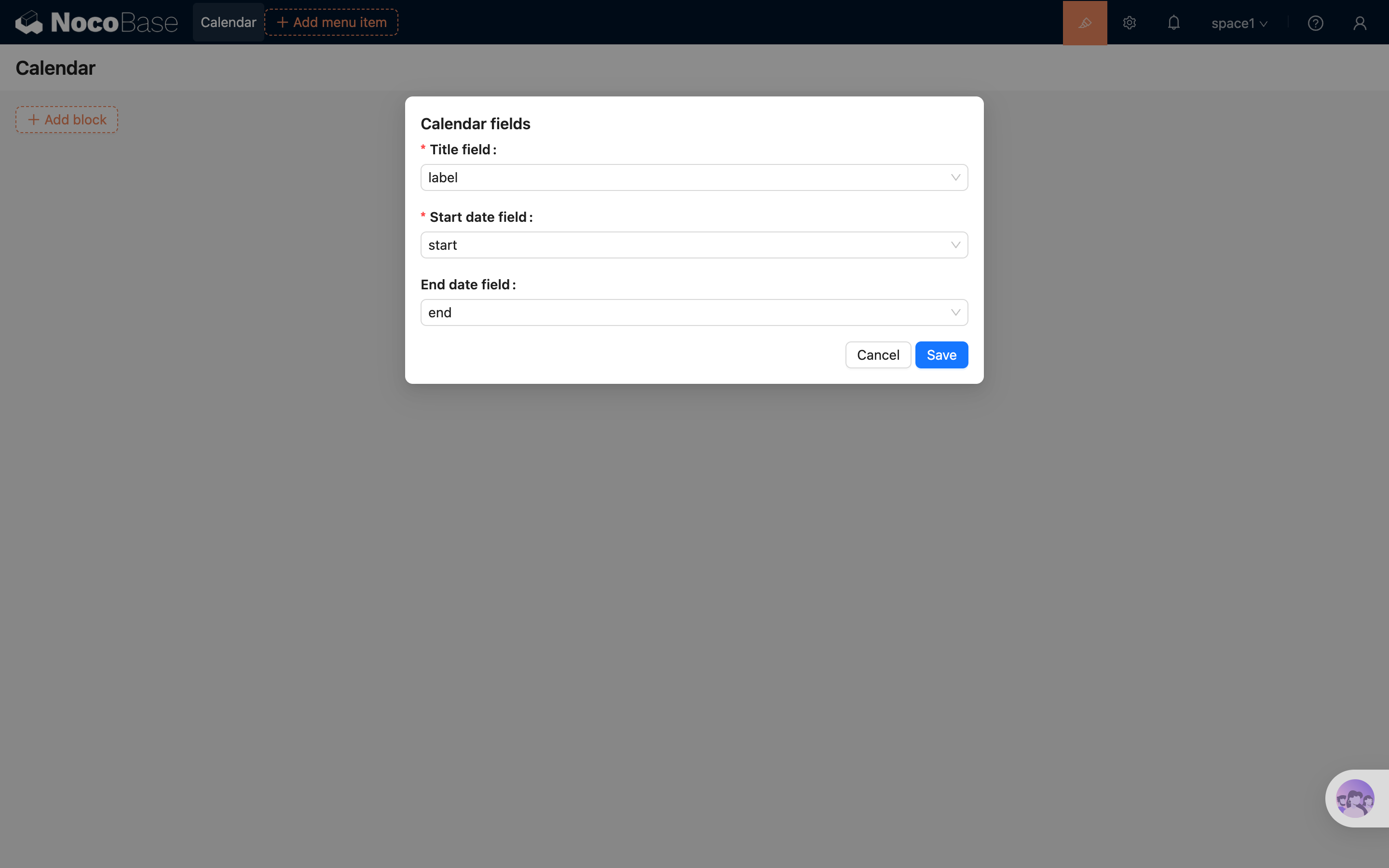
After selecting the "Calendar" block and choosing a data table, configure the fields used by calendar events in the popup:
- Select the "Title field", which is used as the event title.
- Select the "Start date field", which determines the event start date.
- Optionally select the "End date field". If it is not selected, events are displayed as all-day events based on the start date.
After completing the configuration, you can create the Calendar block.
Block settings
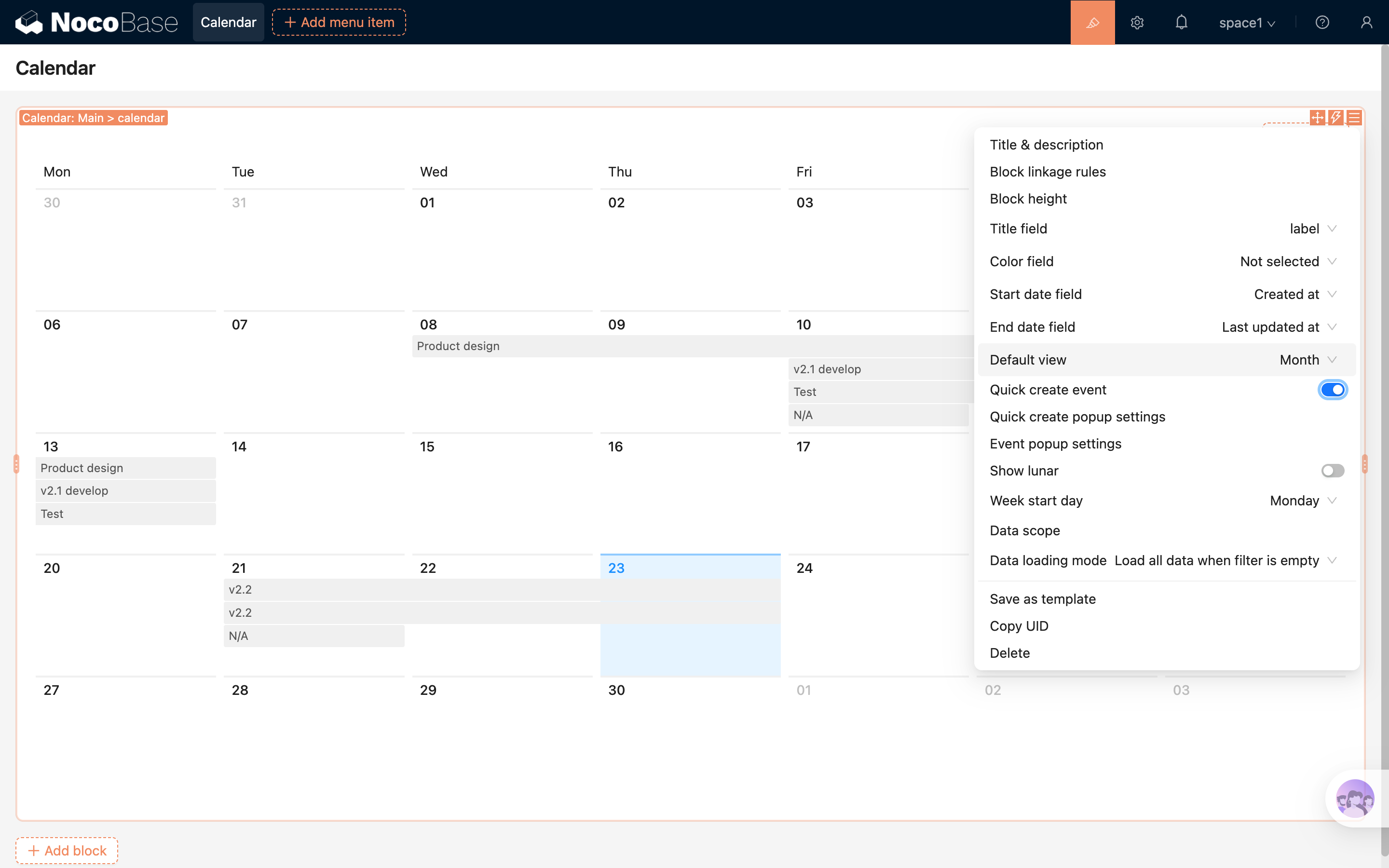
Title field
Used to display the title information on calendar event bars.
Currently supported field types include input, select, phone, email, radioGroup, sequence, etc. Additional types can be supported via plugin extensions.
Start date field
Specifies the start time of an event.
End date field
Specifies the end time of an event. This field is optional. If it is not configured, events are displayed as all-day events based on the start date.
Quick create event
Click on an empty date area in the calendar to quickly open a pop-up for creating an event.
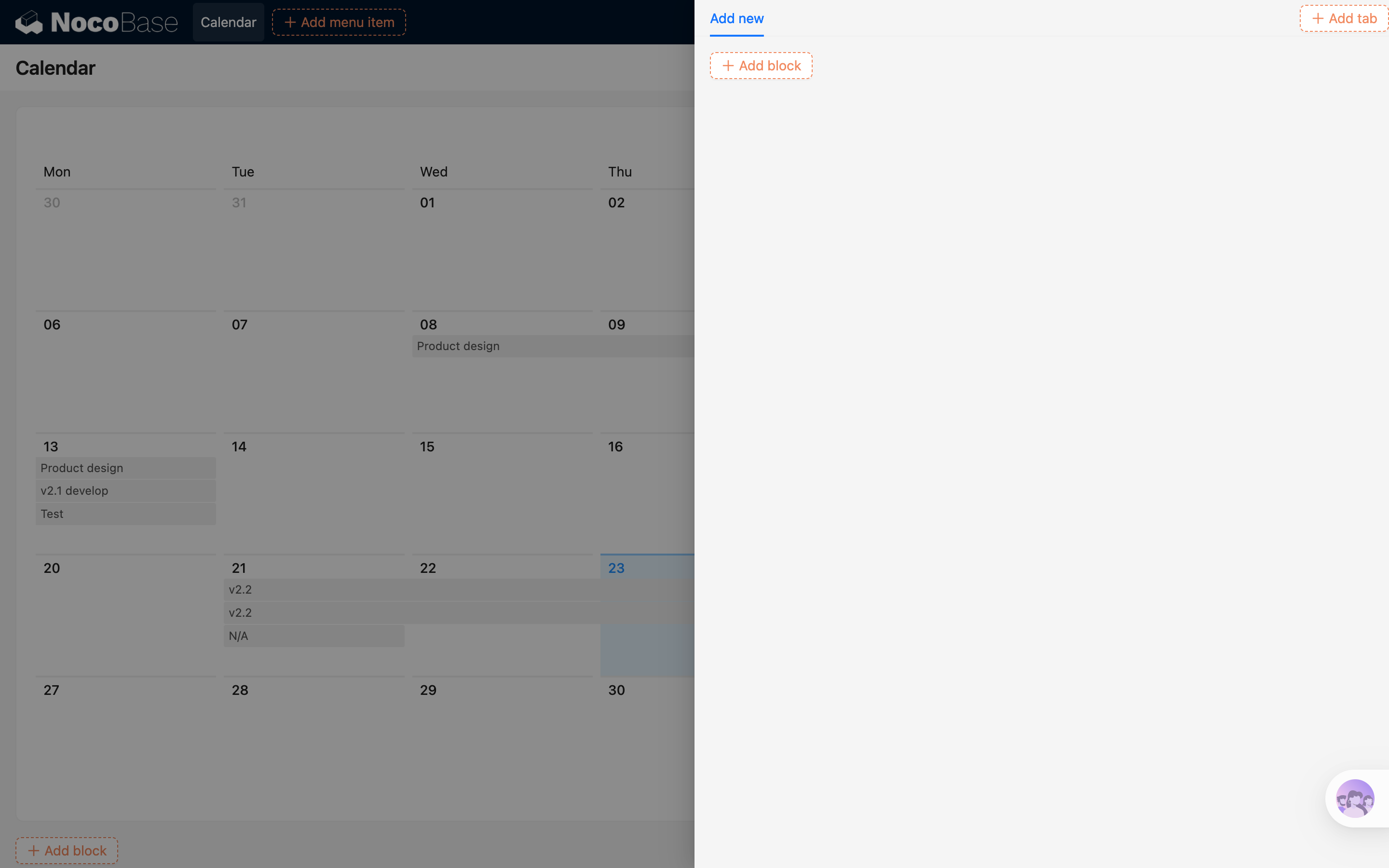
When clicking on an existing event:
- The selected event will be highlighted
- A detail modal will open for viewing or editing
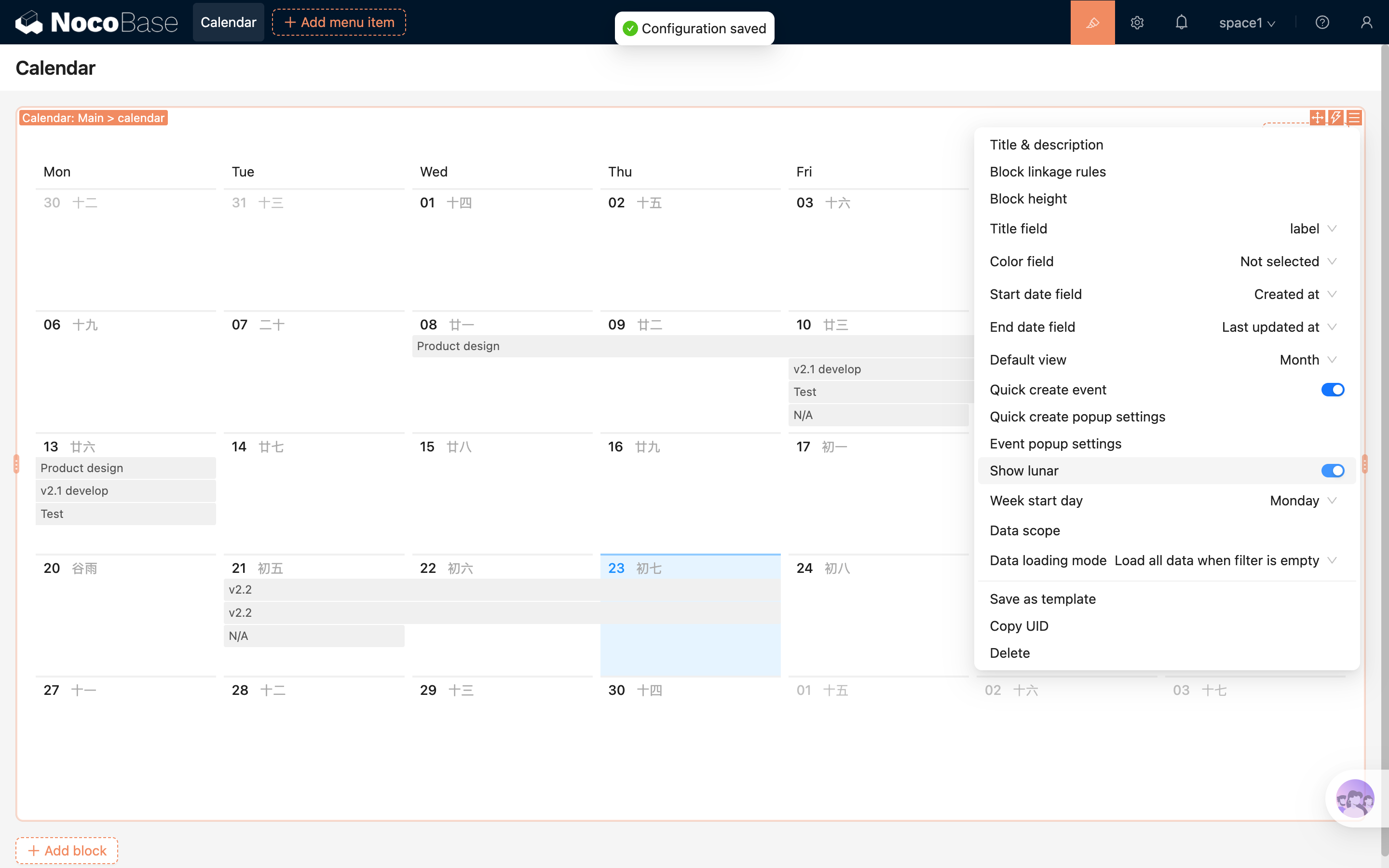
Show lunar
When enabled, the calendar will display corresponding lunar date information.
Data scope
Used to restrict the data displayed in the calendar block.
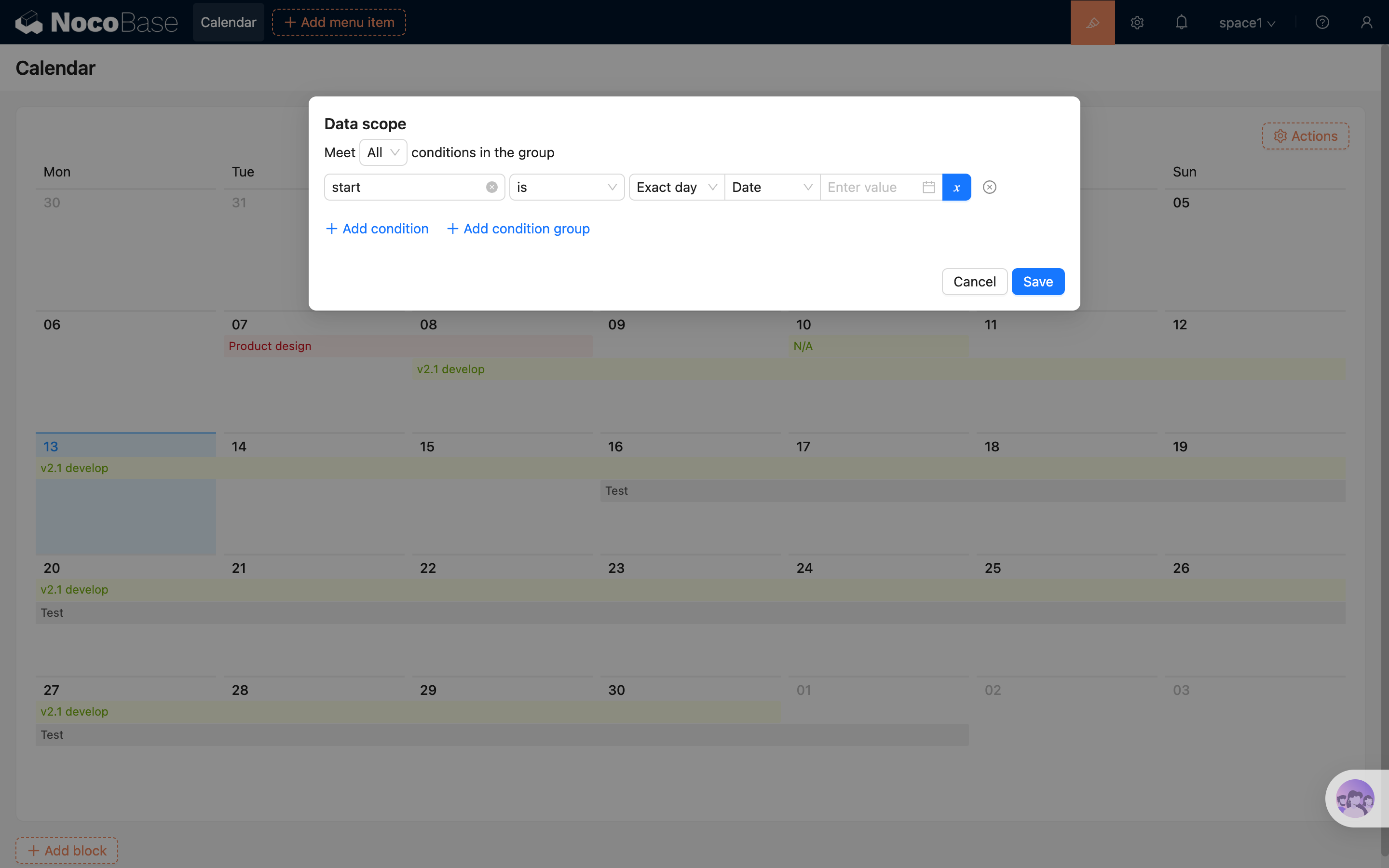
For more details, see: Set Data Scope
Block height
Allows customization of the calendar block height to avoid internal scrollbars and improve layout experience.
.png)
For more details, see: Block Height
Color field
Used to configure the background color of calendar events for better visual distinction.
Steps:
- Add a Single select or Radio group field in the data table and configure colors for its options;
- In the calendar block settings, set this field as the "Color Field";
- When creating or editing events, select a color to see it applied in the calendar.
.png)
Week start day
Supports setting the first day of the week:
- Sunday
- Monday (default)
This can be adjusted based on regional preferences for a more natural calendar experience.
Actions
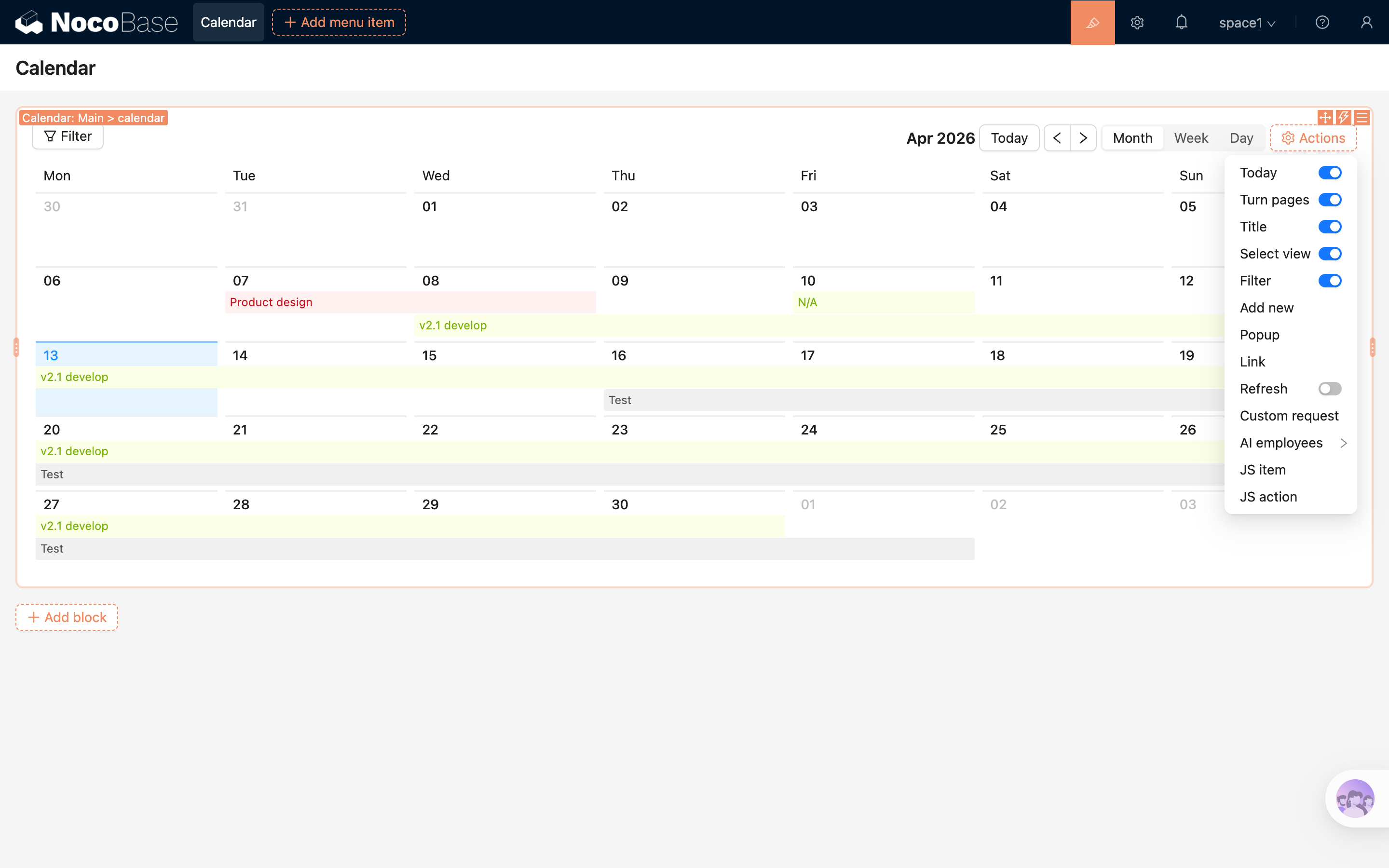
Today
Click the "Today" button to quickly navigate back to the current date in the calendar view.
Turn pages
Switch between dates based on the current view mode:
- Month view: previous month / next month
- Week view: previous week / next week
- Day view: yesterday / tomorrow
Select view
Supports switching between:
- Month view (default)
- Week view
- Day view
Title
Displays the current date based on the selected view.