

Tree Filter
Introduction
The Tree Filter block provides filtering capabilities through a hierarchical tree structure. It is suitable for data with parent-child relationships, such as product categories or organizational structures.
Users can select nodes at different levels to apply cascading filters to connected data blocks.
How to Use
The Tree Filter block must be used together with a data block to provide filtering functionality.
Configuration steps:
- Enable configuration mode, then add a "Tree Filter" block and a data block (such as a "Table Block") to the page.
- Configure the Tree Filter block by selecting a tree-structured data collection (e.g., a product category table).
- Set up the connection between the Tree Filter block and the data block.
- Once configured, click on tree nodes to filter the data in the connected block.
Add Block
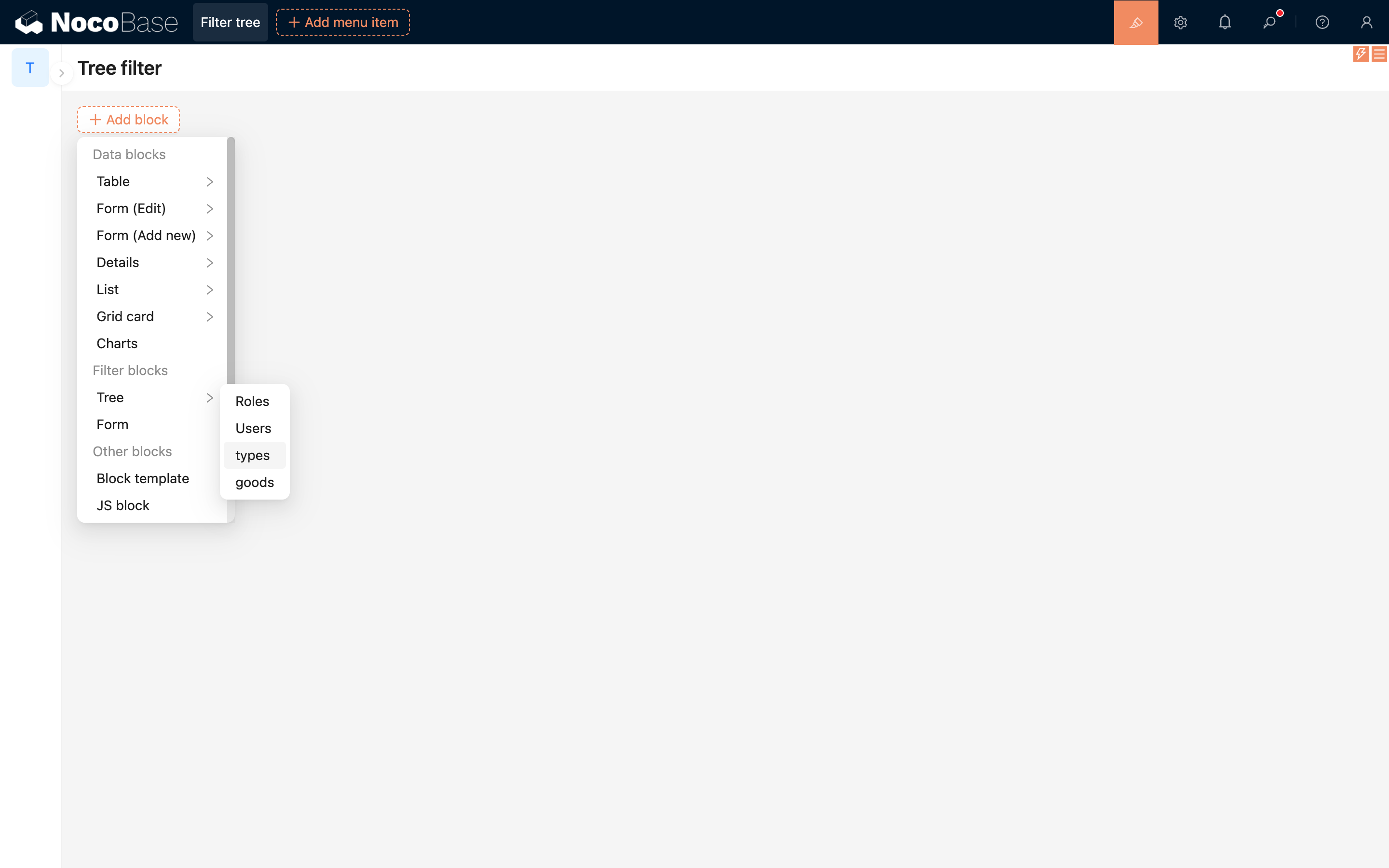
In configuration mode, click the "Add block" button on the page, then select "Tree" under the "Filter blocks" category to add a Tree Filter block.
Block Settings
.png)
Connect data blocks
The Tree Filter block must be connected to a data block to take effect.
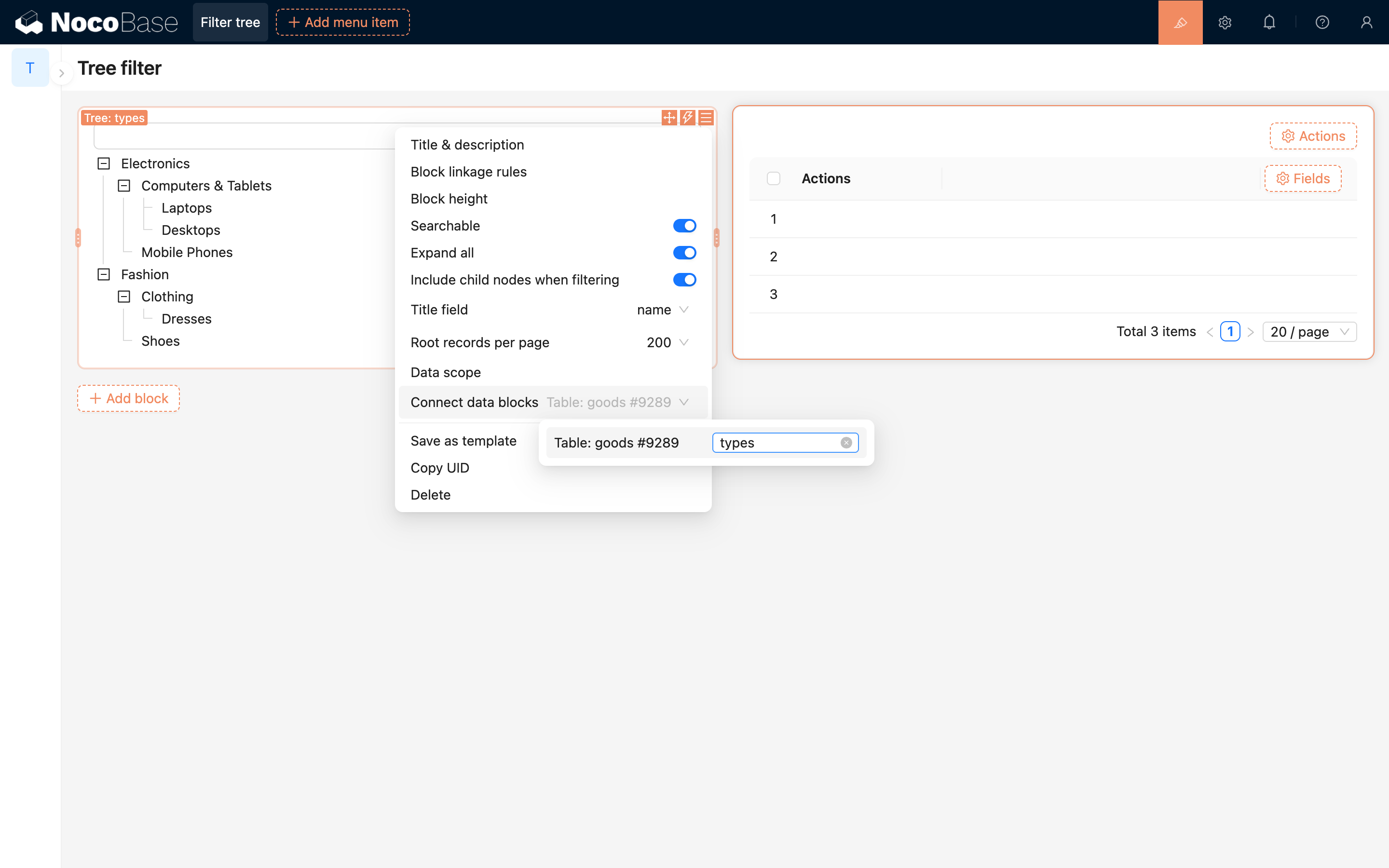
Through the "Connect data blocks" setting, you can link the Tree Filter with table, list, chart, or other data blocks on the page to enable filtering.
Title field
Specifies the field used as the display title for each tree node.
Search
When enabled, users can quickly locate tree nodes using keywords.
Expand all
Controls whether all tree nodes are expanded by default when the page is first loaded.
Include child nodes when filtering
When enabled, selecting a node will include all its child nodes in the filtering scope.
This is useful when you want to view all data under a parent category.