logologo
Get Started
Tutorials
Guide
Development
Plugins
API
Home
English
简体中文
日本語
한국어
Español
Português
Deutsch
Français
Русский
Get Started
Tutorials
Guide
Development
Plugins
API
Home
logologo
Overview

Blocks

Overview

Data Blocks

Table
Form
Details
List
Grid Card
Chart

Filter Blocks

Form

Other Blocks

Action Panel
Iframe
Markdown
JS Block

Block Settings

Data Scope
Layout
Block Linkage Rules
Field Linkage Rules
Sorting Rules
Drag-and-drop Sorting
Block Deletion
Block Title
Form Drafts
Block Height
Form Drafts

Fields

Overview

Generic Settings

Table Column
Detail Form Item
Filter Form Item
Form Item

Specific Settings

Date
File Manager
Sub-form
Select
Picker
Cascade Select
Sub-table
Sub-detail
Title
JS Field
JS Item
JS Column
JS Column

Field Settings

Default Value
Field Label
Show Label
Field Tooltip
Data Scope
Field Component
Number Format
Pattern
Required
Title Field
Validation Rules
Association Field

Actions

Overview

Action Settings

Edit Button
Double Check
Assign Values
Bind Workflow
Edit Popup
Action Linkage Rules

Action Types

Add New
View
Delete
Edit
Import
Import Pro
Export
Export Pro
Export Attachments
Filter
Link
Pop-up
Refresh
Submit
Trigger Workflow
Update Record
Bulk Update
Bulk Edit
Add Child
JS Action
JS Action
Action Permissions

Advanced

Linkage Rules
Event Flow
Variables
RunJS
UI Templates
Previous PageBulk Edit
Next PageJS Action

#Bulk Edit

Action: Bulk editCommunity Edition+

#Introduction

Bulk Edit is suitable for scenarios requiring flexible batch updates of data. After clicking the Bulk Edit button, you can configure the bulk edit form in a pop-up window and set different update strategies for each field.
#Action Configuration

#User Guide

#Bulk Edit Form Configuration

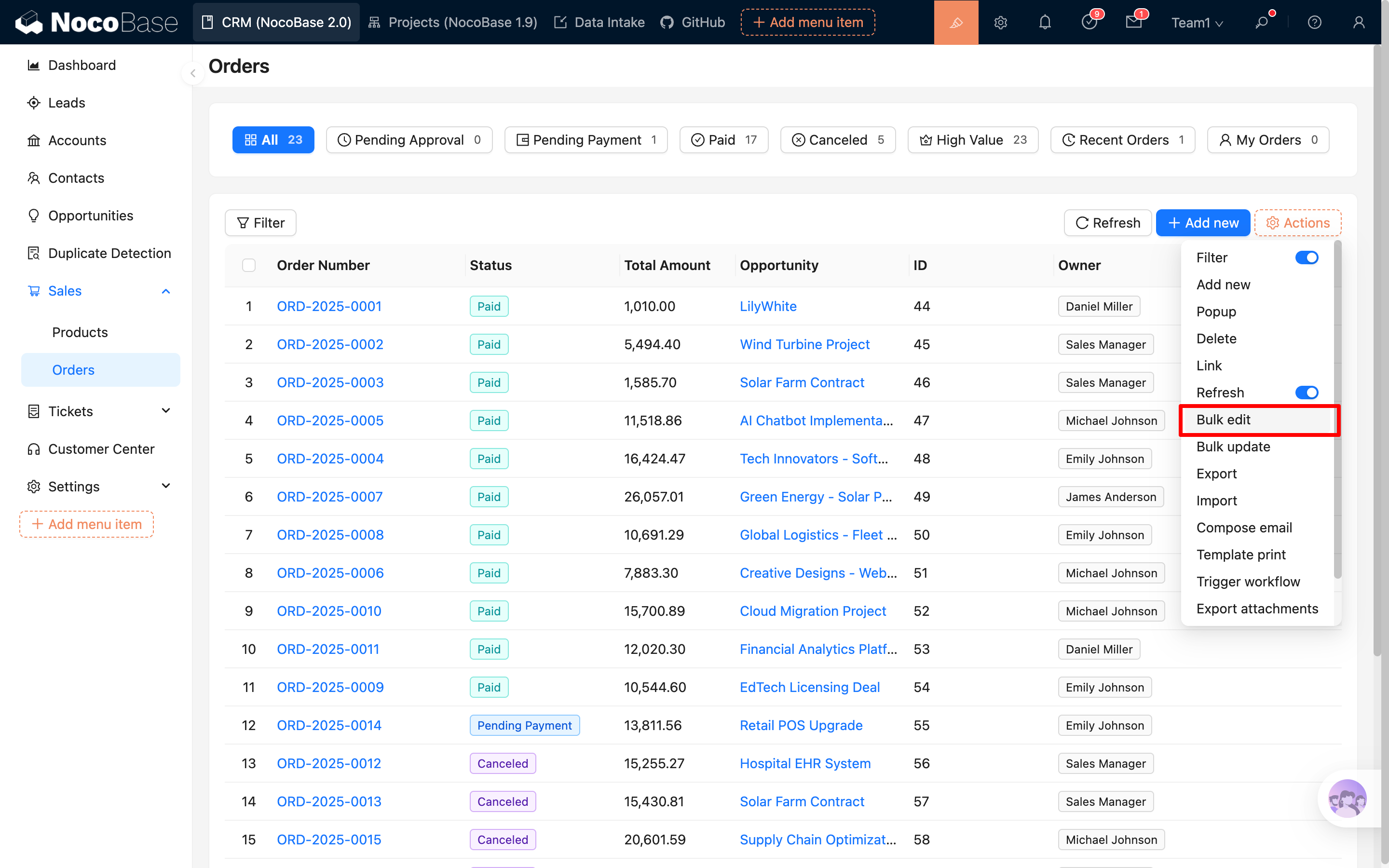
  1. Add a Bulk Edit button.

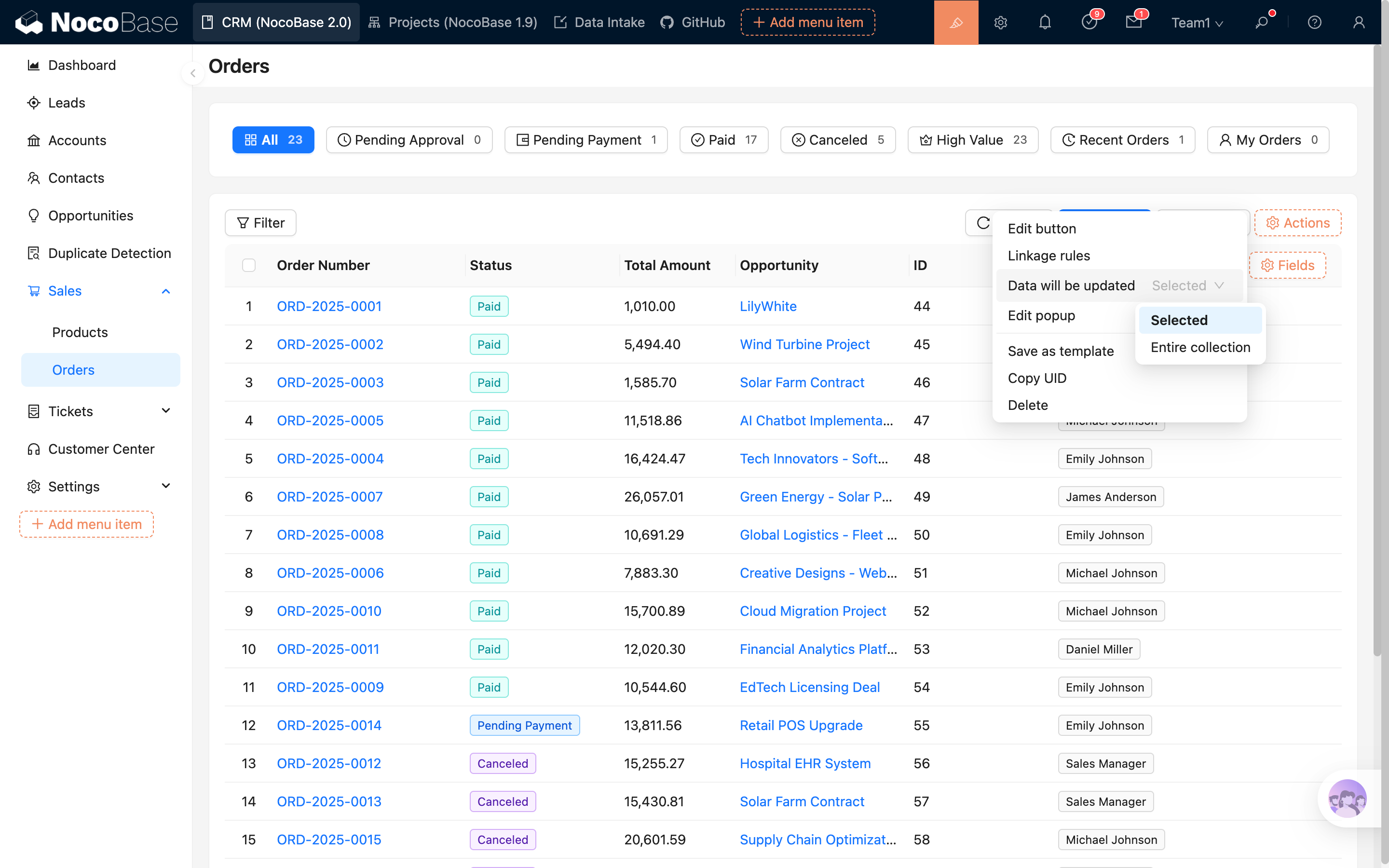
  2. Set the scope for bulk editing: Selected / All, defaults to Selected.
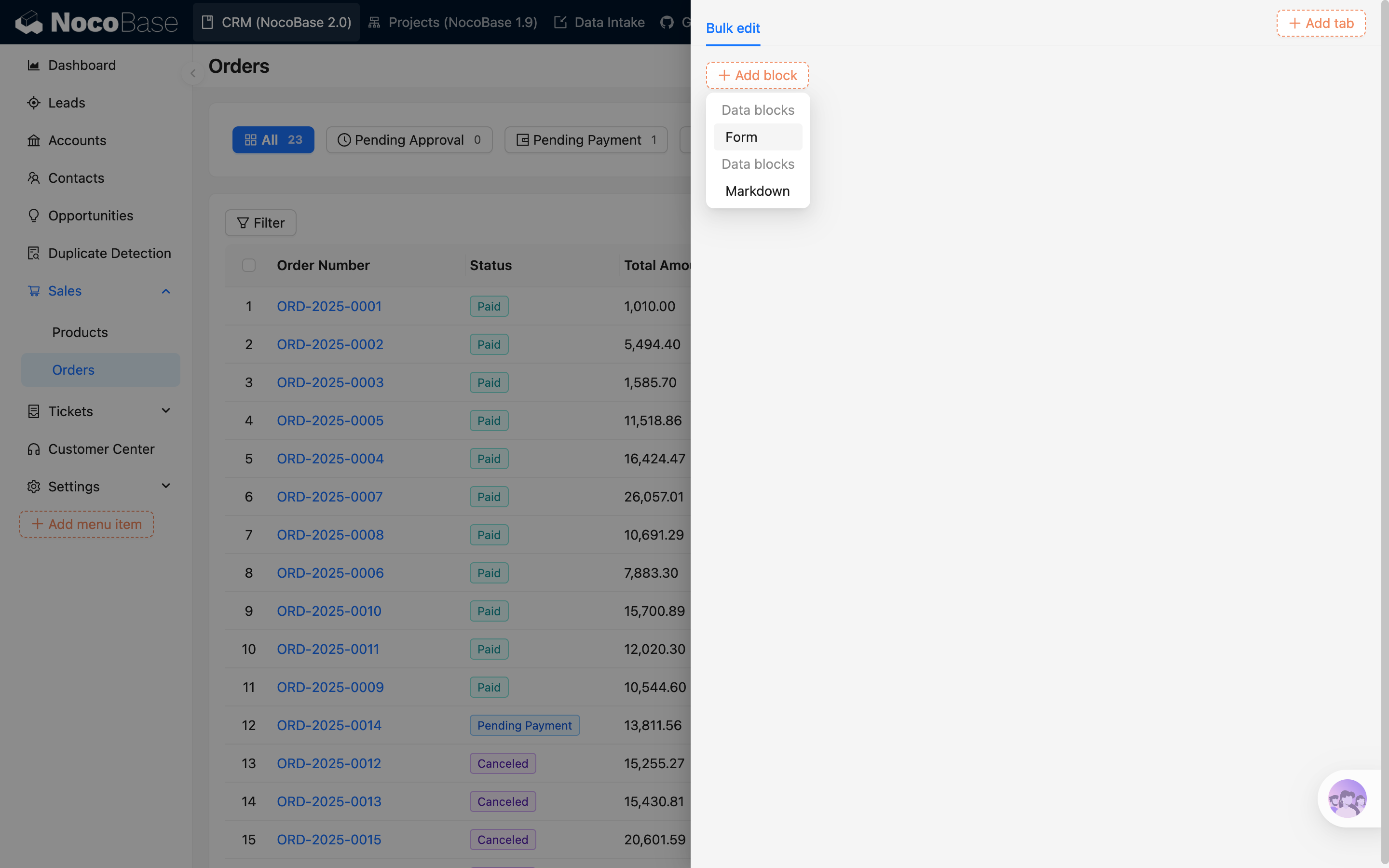
  1. Add a bulk edit form.

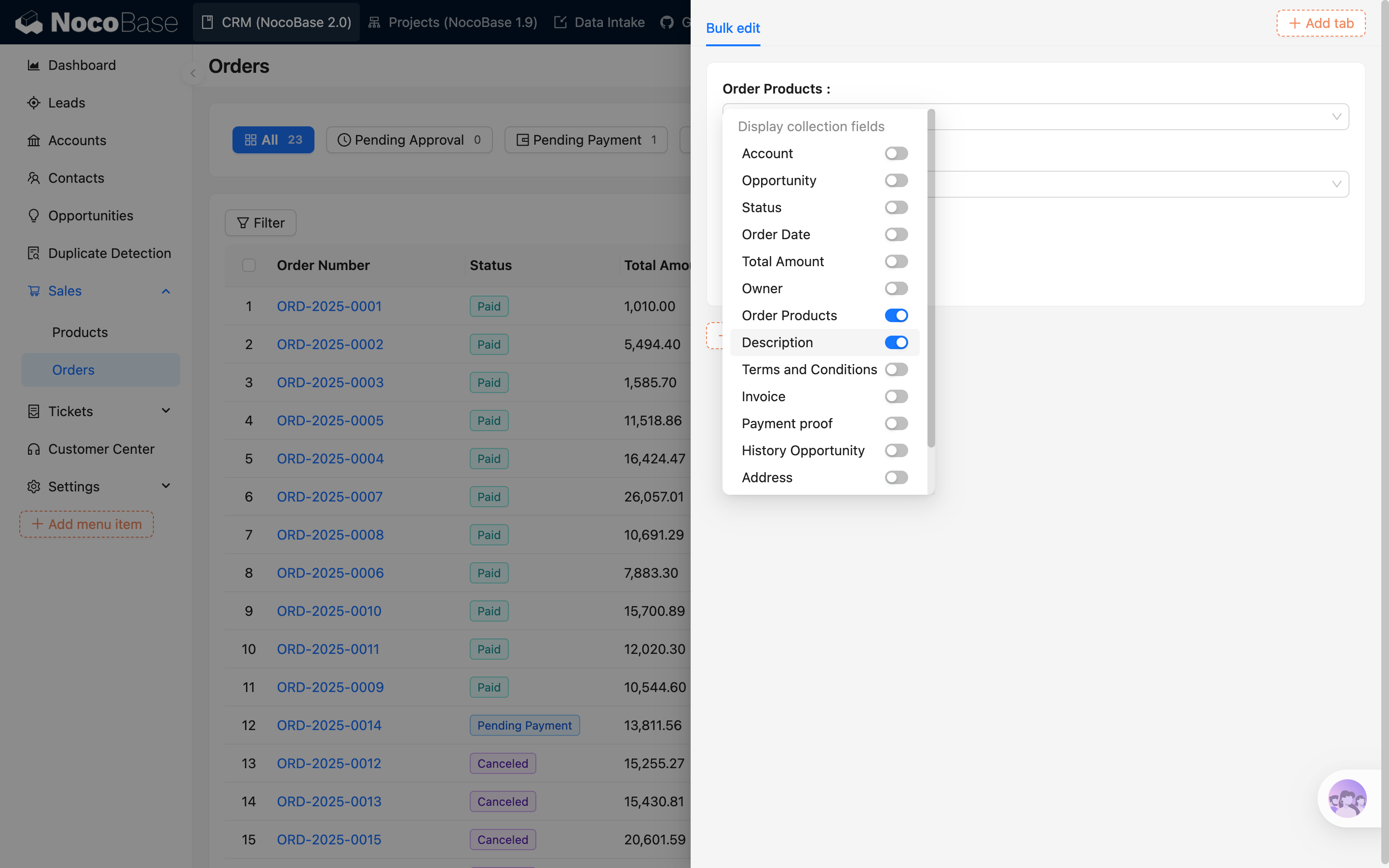
  1. Configure the fields to be edited and add a submit button.

#Form Submission

  1. Select the rows of data to be edited.

  2. Select the edit mode for the fields and fill in the values to be submitted.
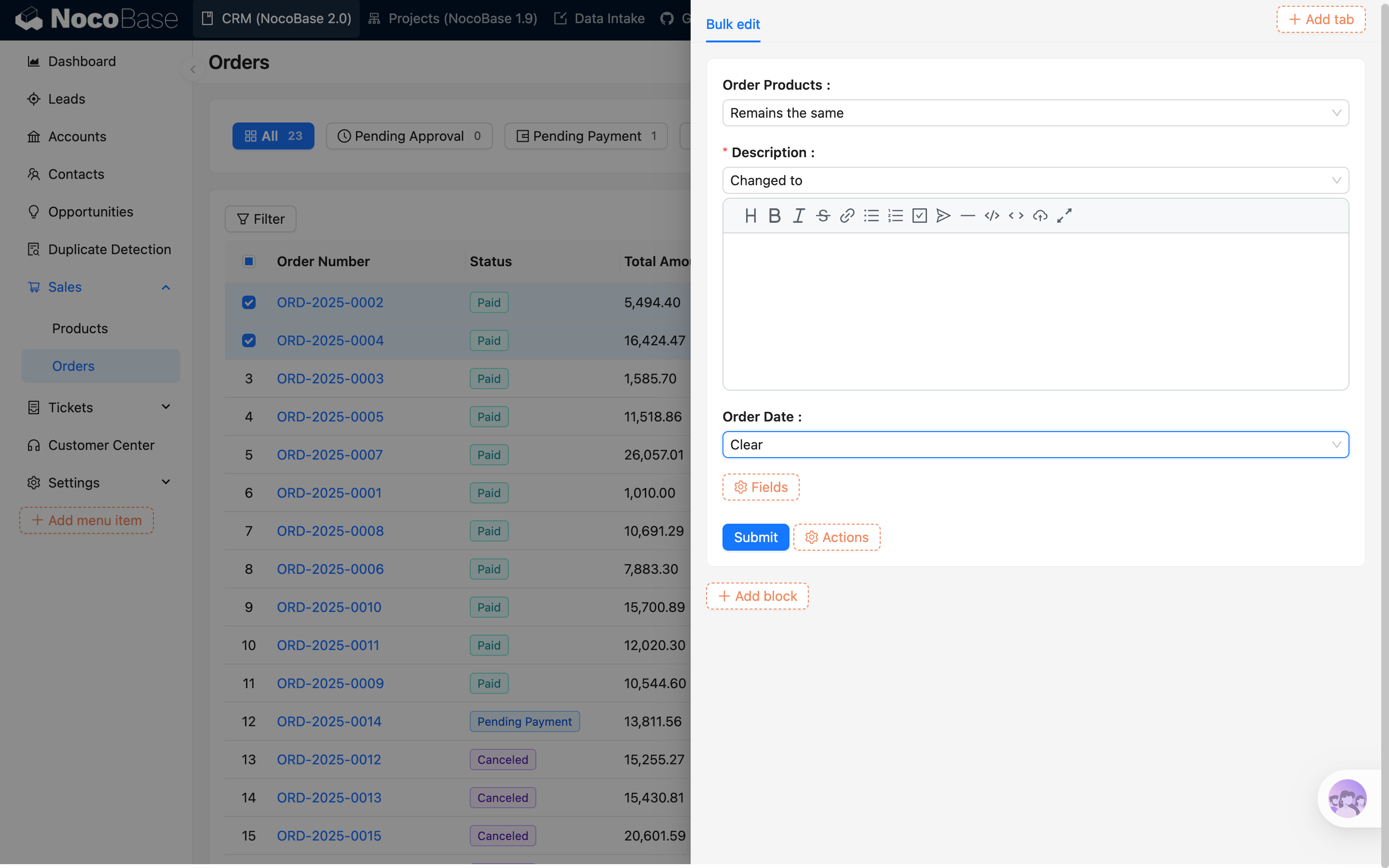
Available Edit Modes
  • Do not update: The field remains unchanged.
  • Change to: Update the field to the submitted value.
  • Clear: Clear the data in the field.
  1. Submit the form.